Getting Started
SnipSnapp is available on Mac, iPhone, and iPad. Here's how to get started.
Download & Install
SnipSnapp is available on the Mac App Store, iPhone App Store, and iPad App Store. Download from your app store or visit our website.
First Launch
When you first launch SnipSnapp on macOS, the app asks for clipboard monitoring consent before it starts saving history. macOS may also show a pasteboard-access prompt the first time monitoring is enabled.
Menu Bar Icon
SnipSnapp lives in your menu bar. The icon is a pin (pin.fill when active, pin.slash when paused). Click to open the panel, or use Cmd + Shift + V.

Active state (pin.fill)

Paused state (pin.slash)
Right-Click Menu
Right-click the menu bar icon for quick actions: Pause/Resume Monitoring and Quit.
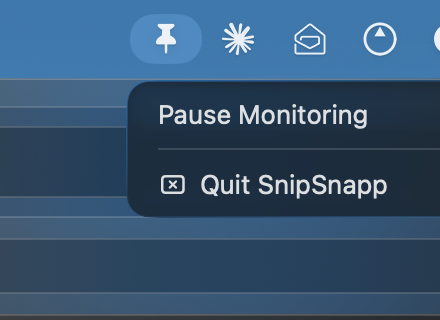
Context menu (active)
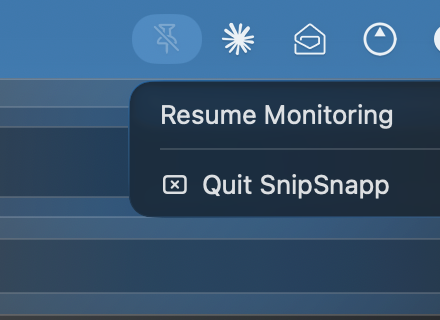
Context menu (paused)
Clipboard Permission
Clipboard capture starts only after you allow SnipSnapp's in-app clipboard monitoring consent. macOS may also show a pasteboard-access prompt the first time clipboard capture is enabled.
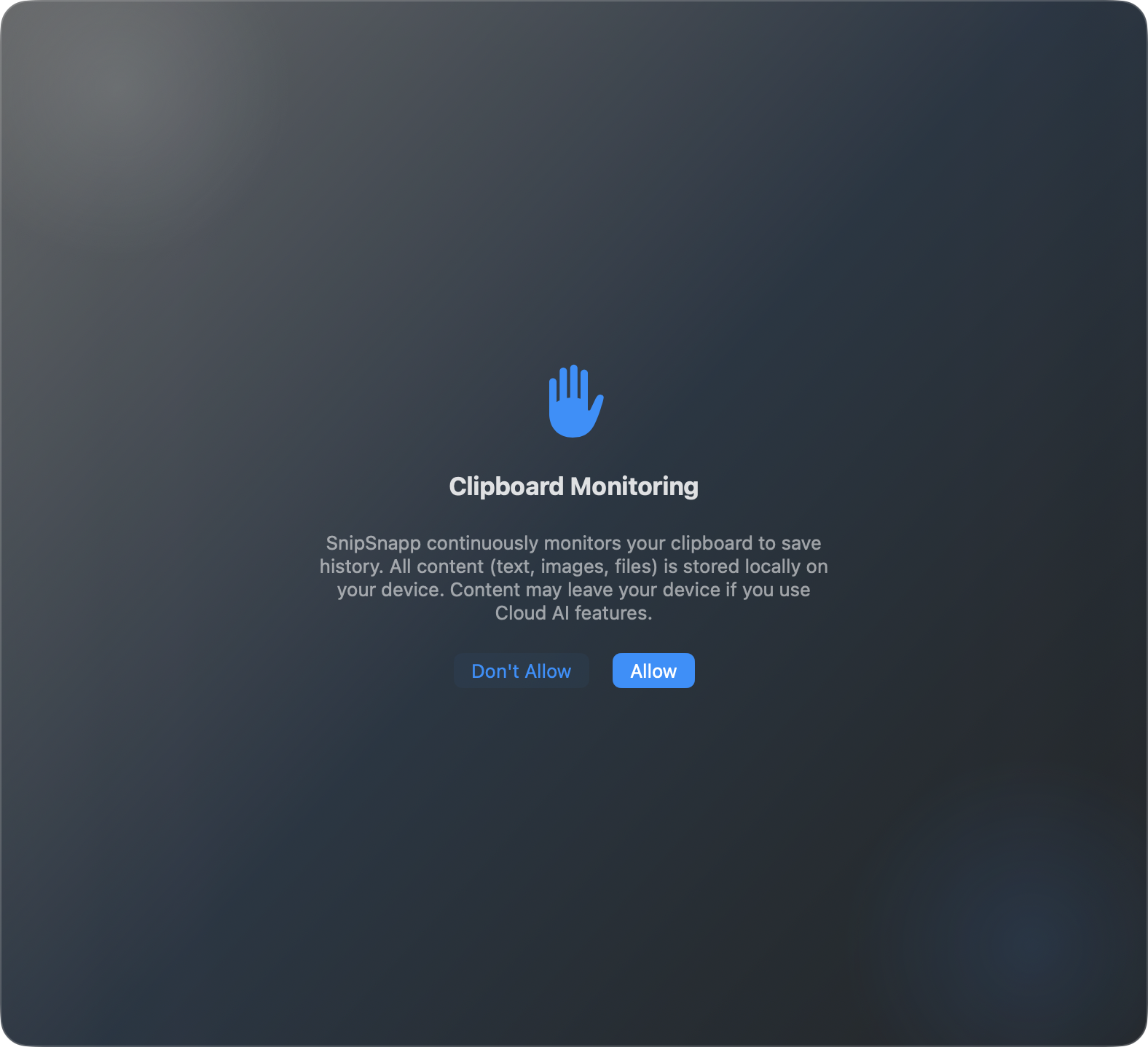
Clipboard monitoring consent dialog
Menu Bar Panel
Open with Cmd + Shift + V to see your clipboard history.
Viewing History
The panel displays items in chronological order with content type badges, previews, source app, timestamp, and character count.
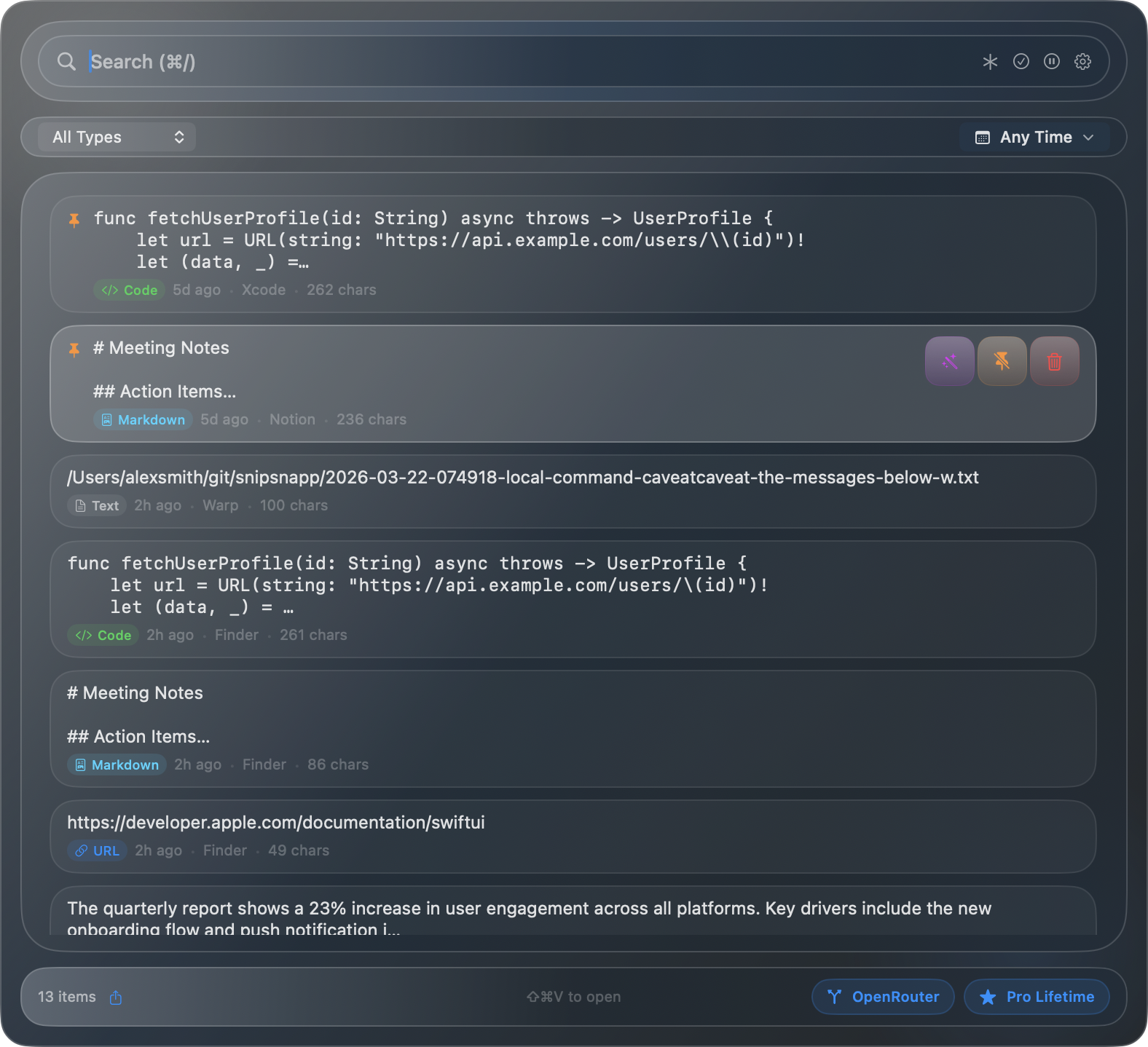
Menu bar panel showing clipboard history
Quick Actions
Hover over an item to reveal action buttons: wand (transform), pin, and delete. Click any item to copy it.
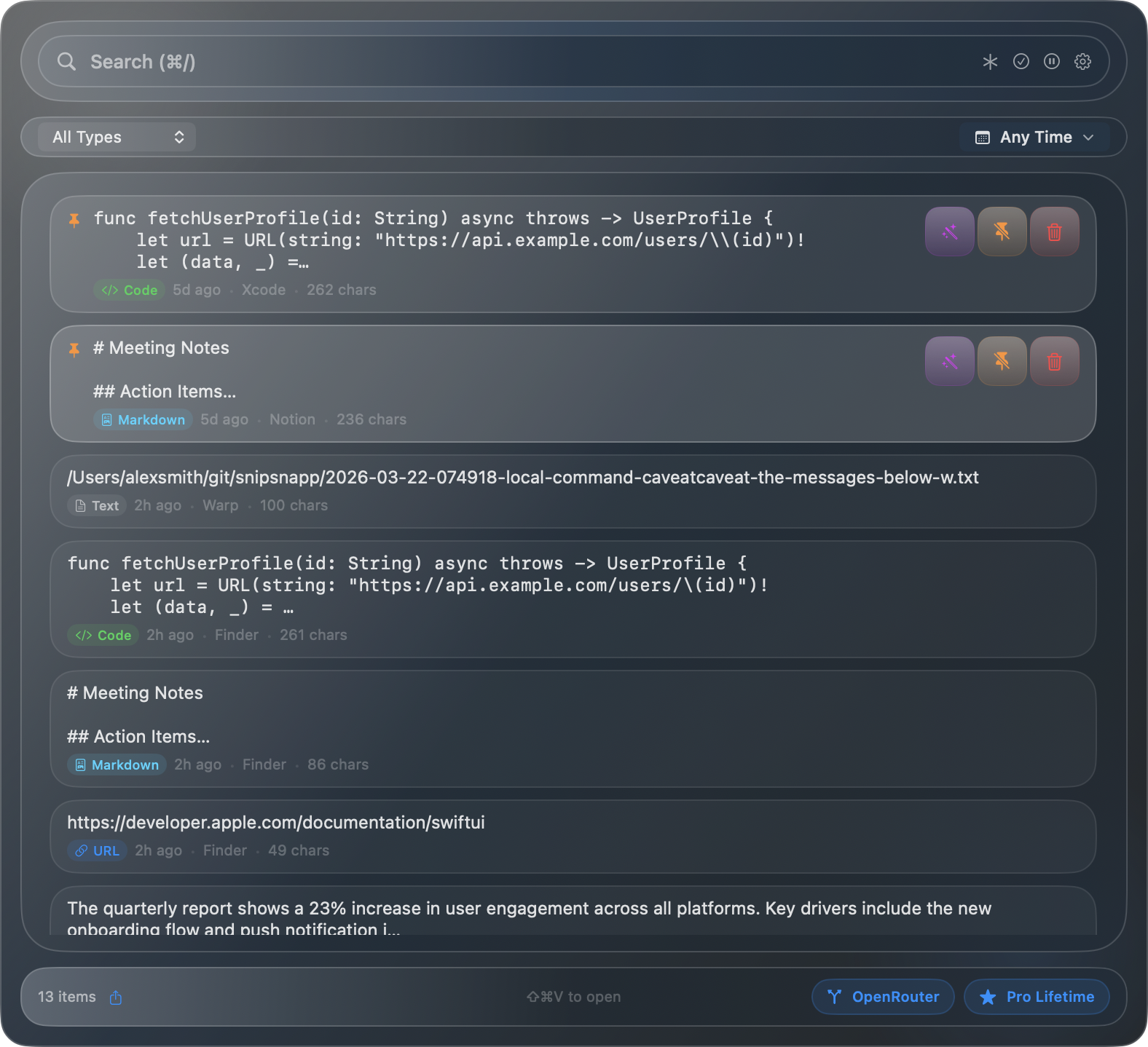
Hover state showing action buttons
Search
Use the search field to find items by full-text search. Results update in real-time.
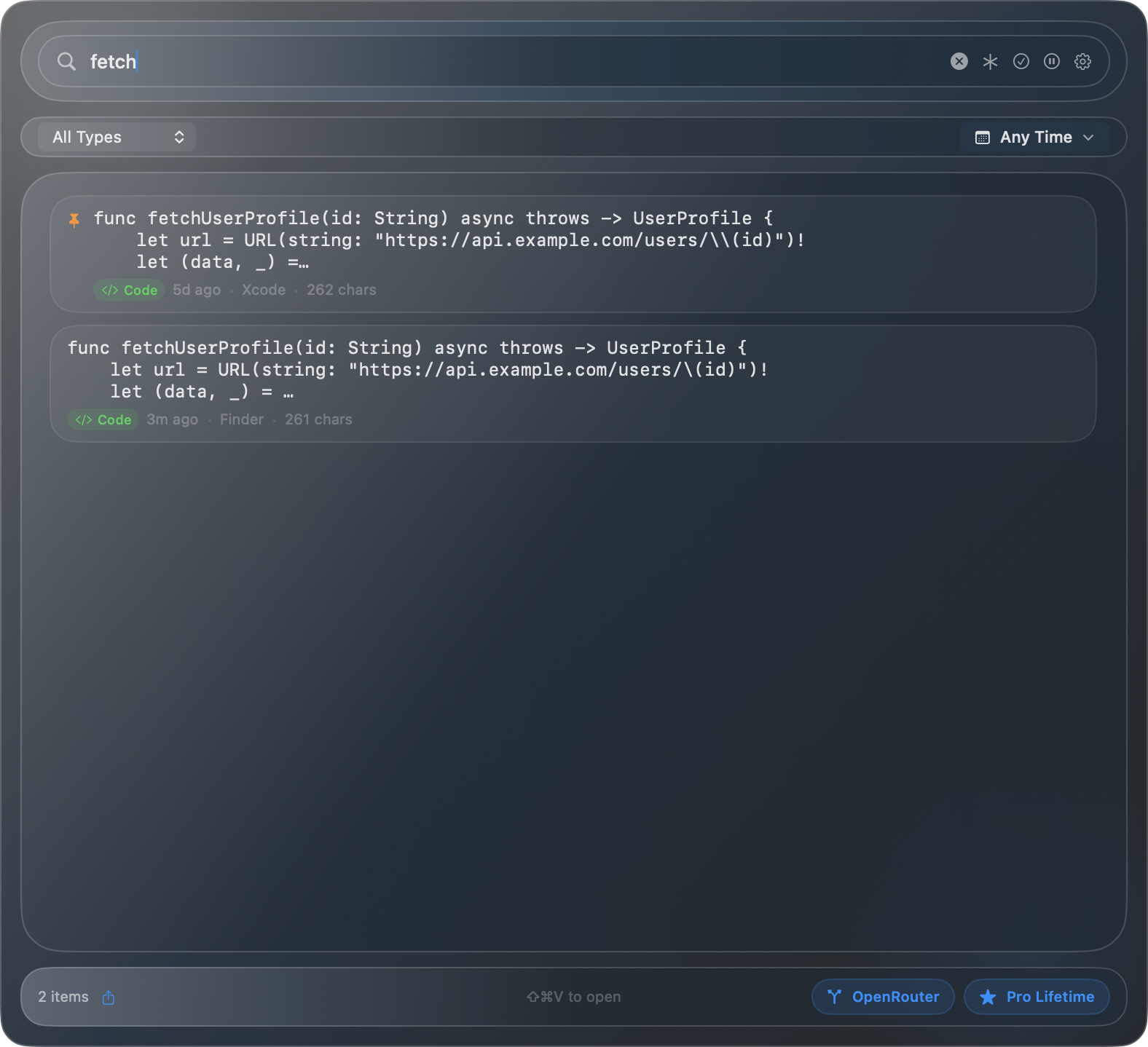
Search with filtered results
Quick Search Window
Open a Spotlight-style floating window with Cmd + Option + V.
The Window
Quick Search is a floating window centered on your screen, perfect for rapid clipboard access with keyboard navigation.
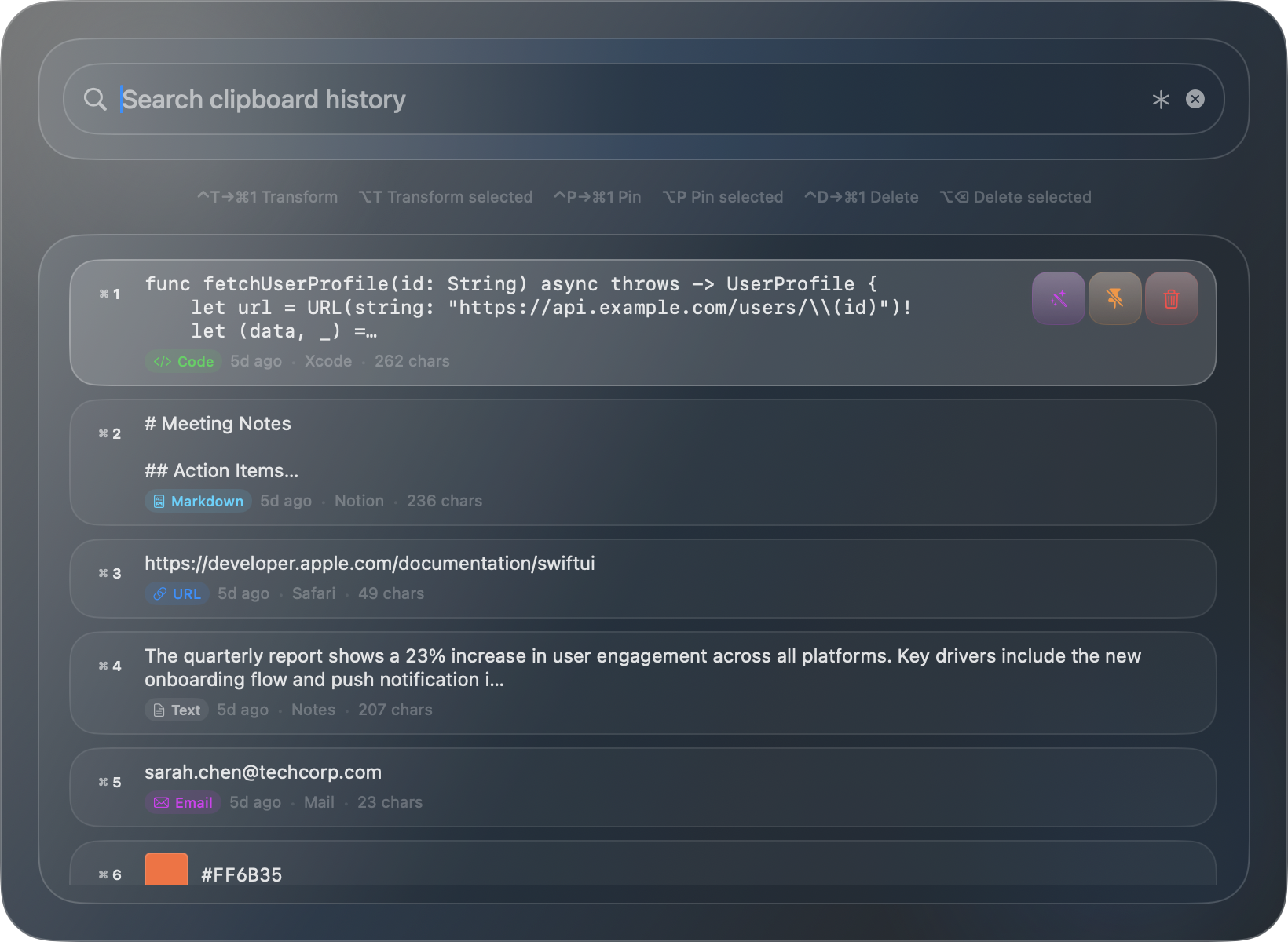
Quick Search window
Keyboard Navigation
- Arrow Up/Down — navigate items
- Enter — paste selected item
- Cmd + 1–9 — copy the nth item
- Escape — close the window
Search
Type to filter results in real-time.
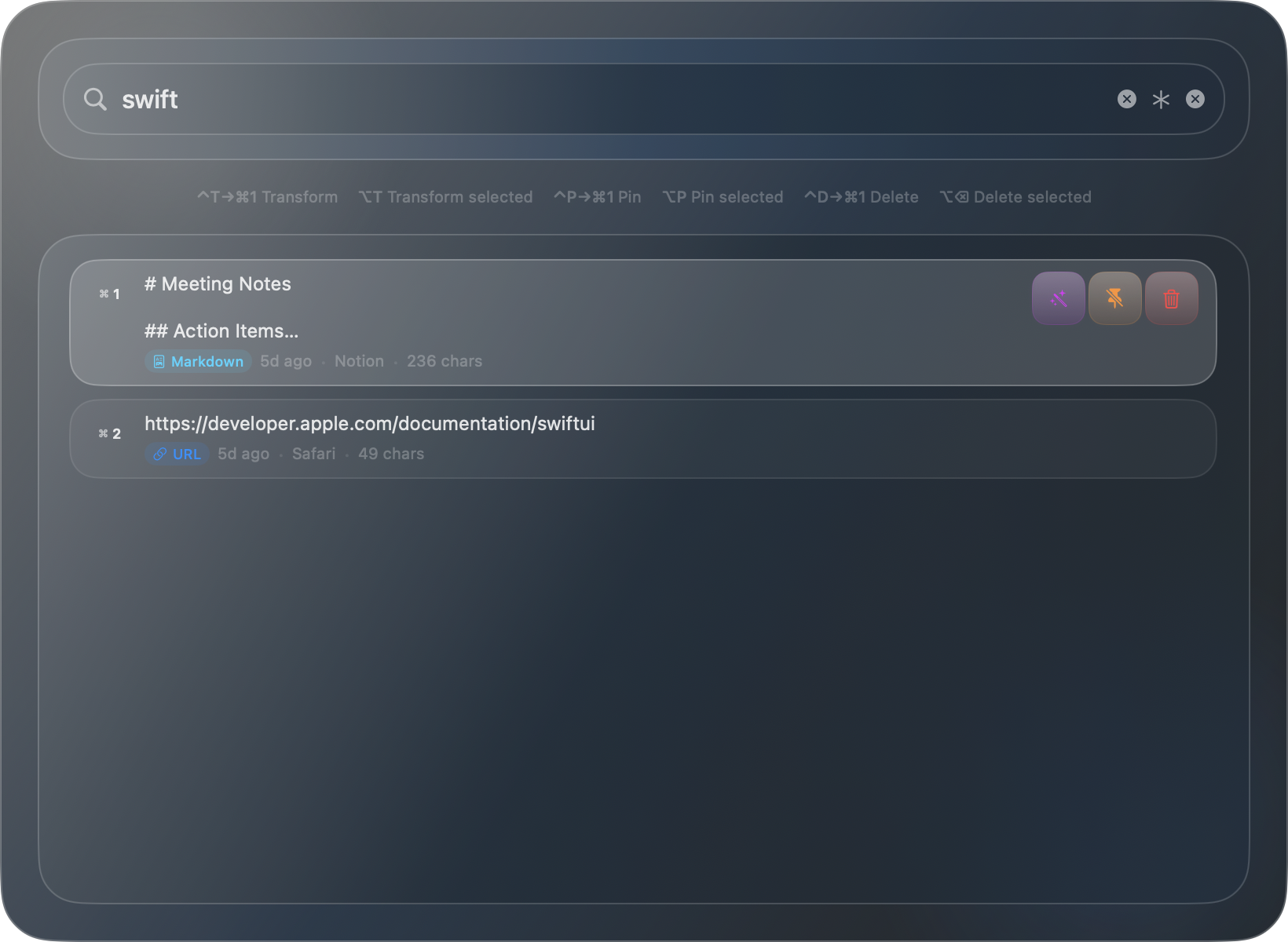
Quick Search with filter applied
Smart Content Detection
SnipSnapp automatically detects content types and displays them appropriately.
Supported Types
Text, Code (21 languages), URL, Email, Phone, Color, Markdown, Image, File
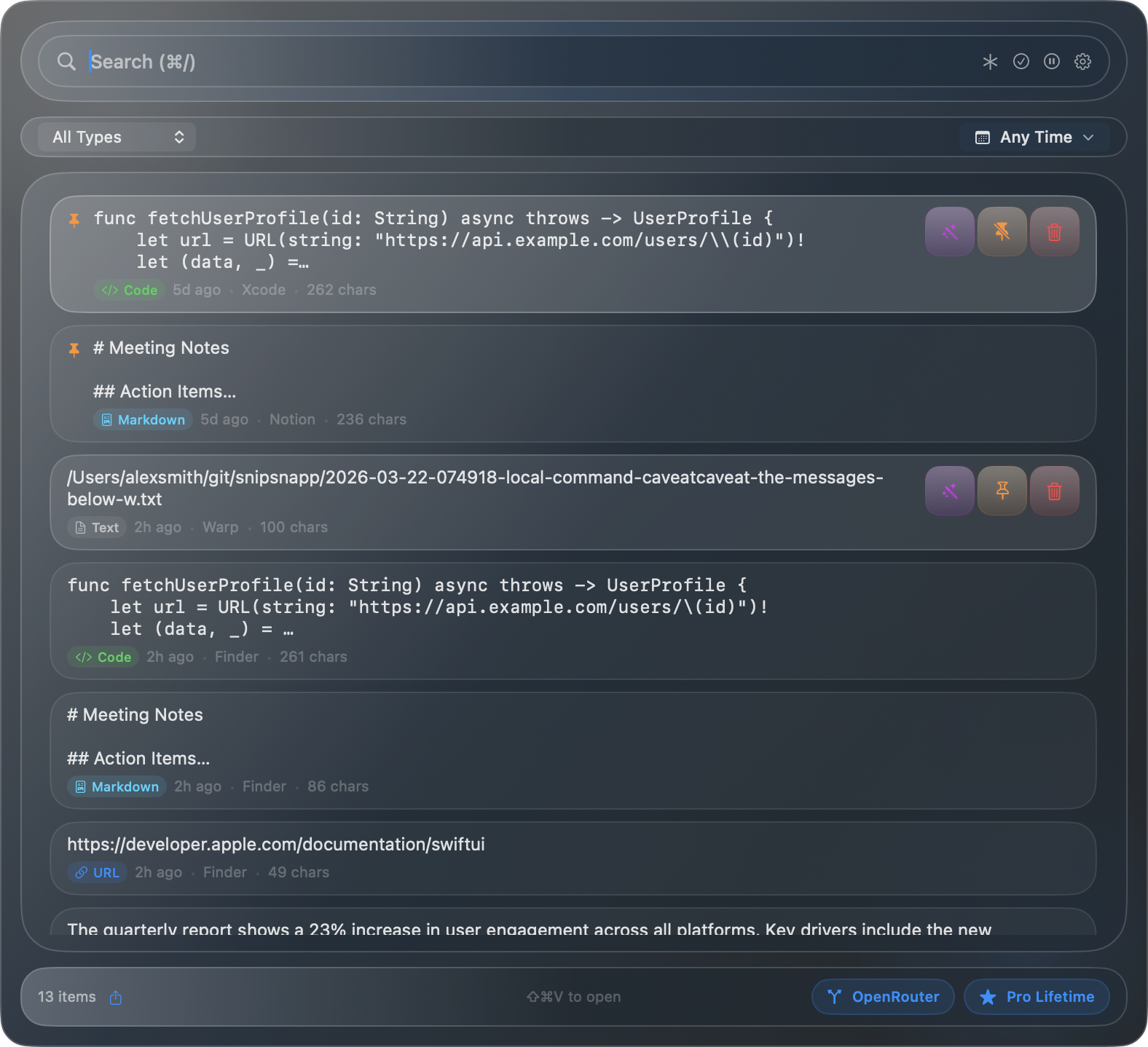
Various content type badges
Color Previews
Hex colors display a colored swatch for easy identification.
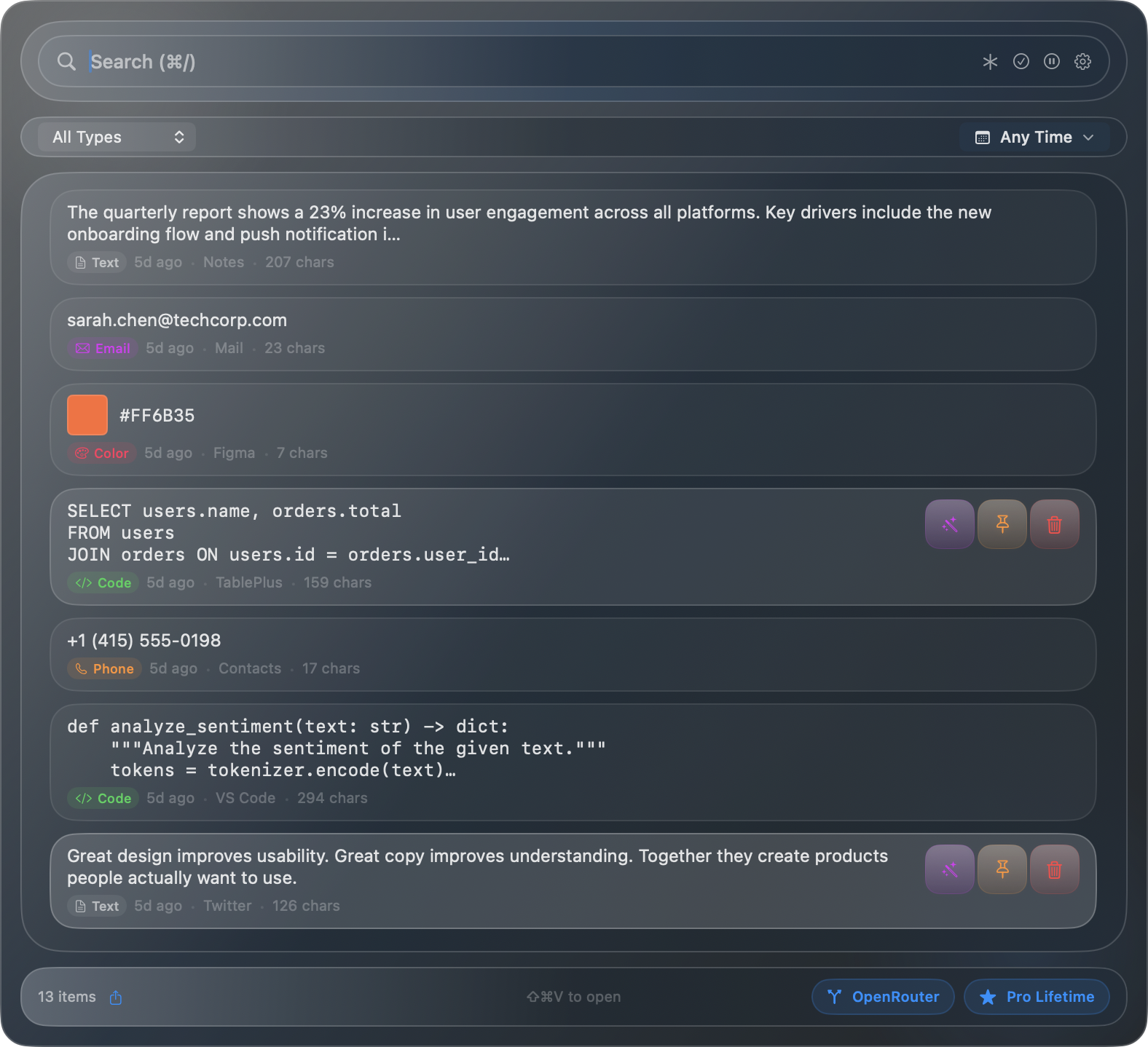
Color item with hex swatch
Search & Filters
Find exactly what you need with powerful search and filtering.
Full-Text Search
Search across all clipboard content with partial matching support.
Content Type Filter
Click "All Types" to filter by content type.
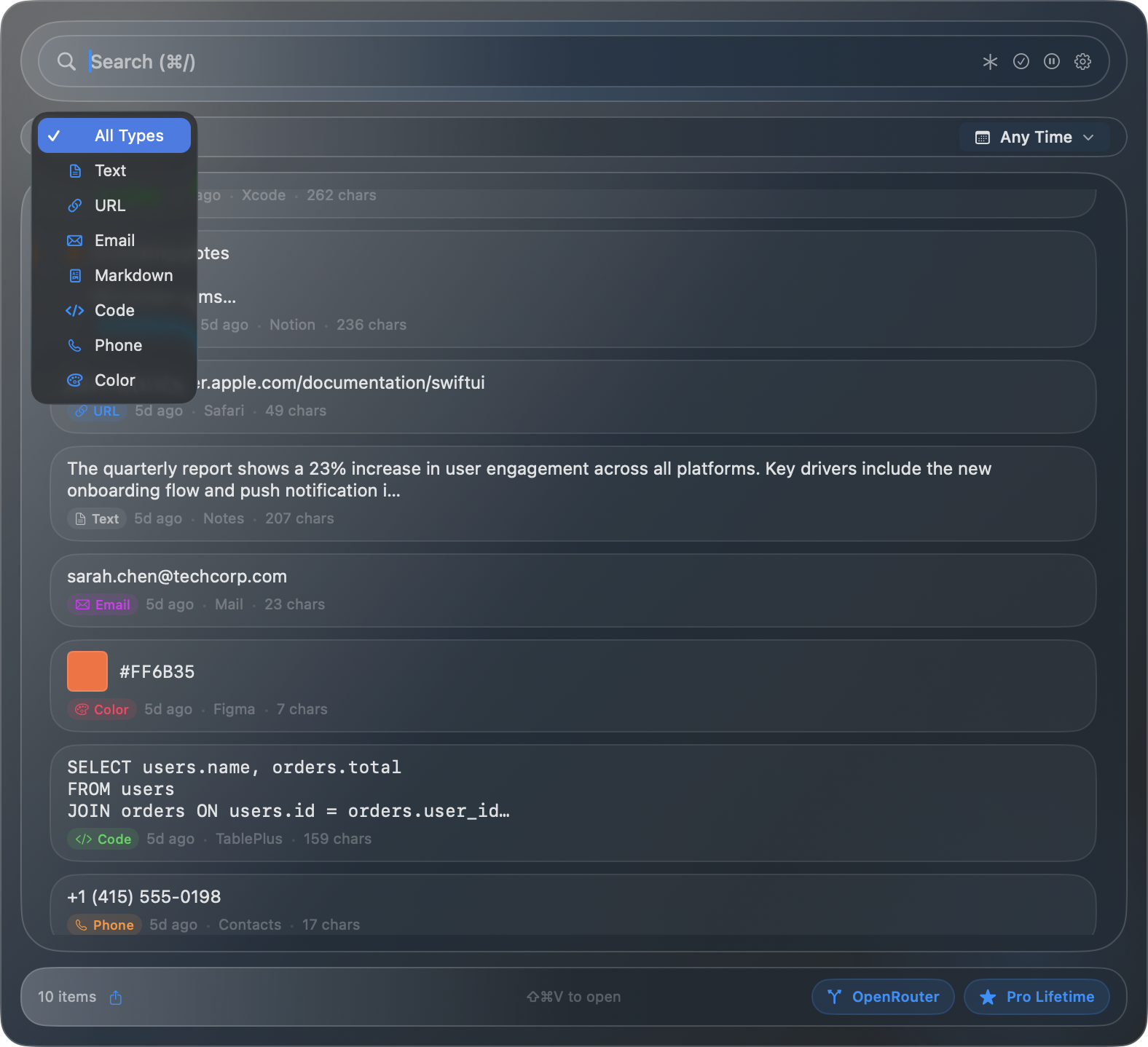
Content type filter dropdown
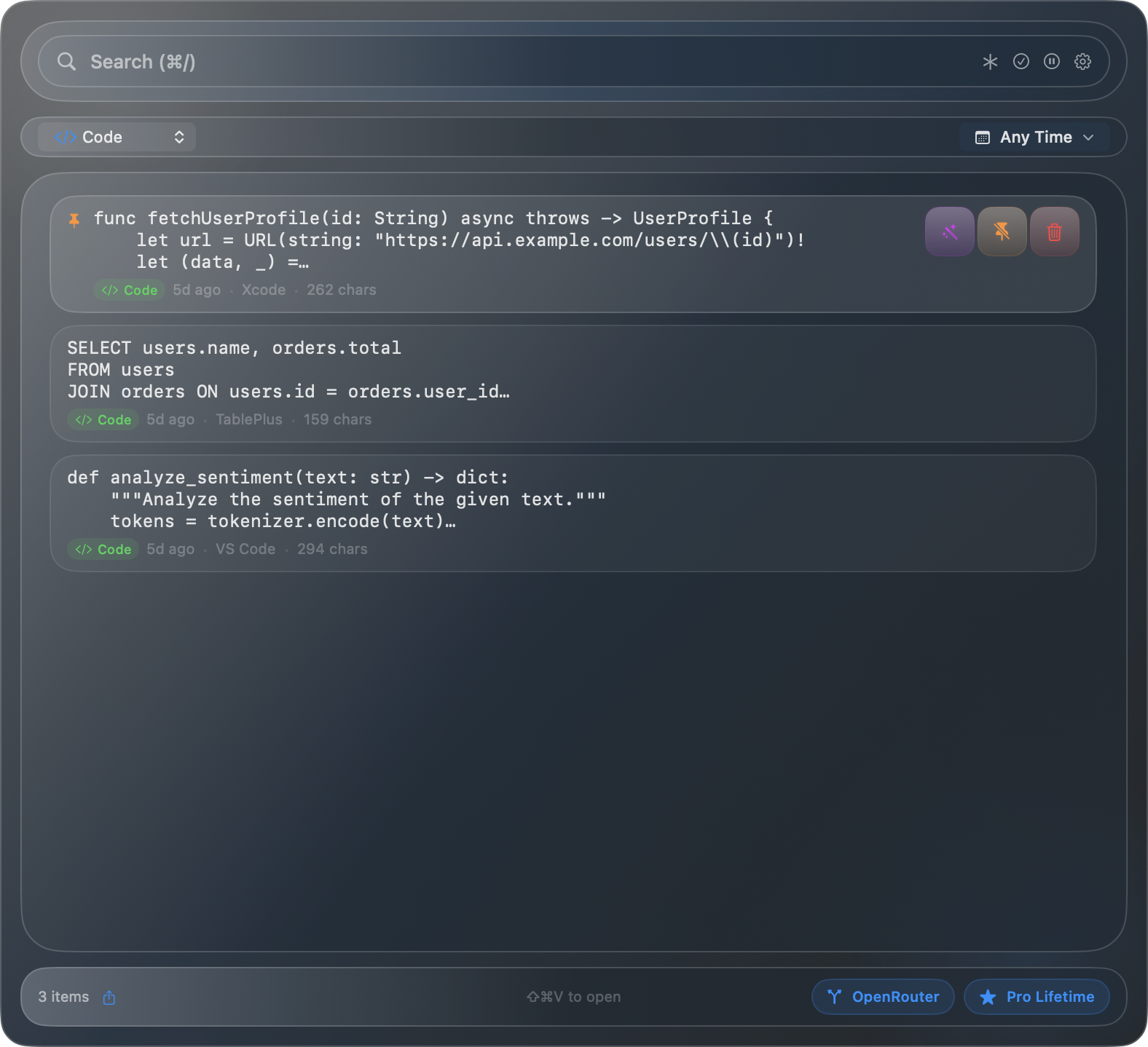
Filtered to show only Code items
Date Range Filter
Click "Any Time" to filter by date (Today, Last Hour, Last 24h, 3 days, 7 days, 14 days, 30 days, or custom).
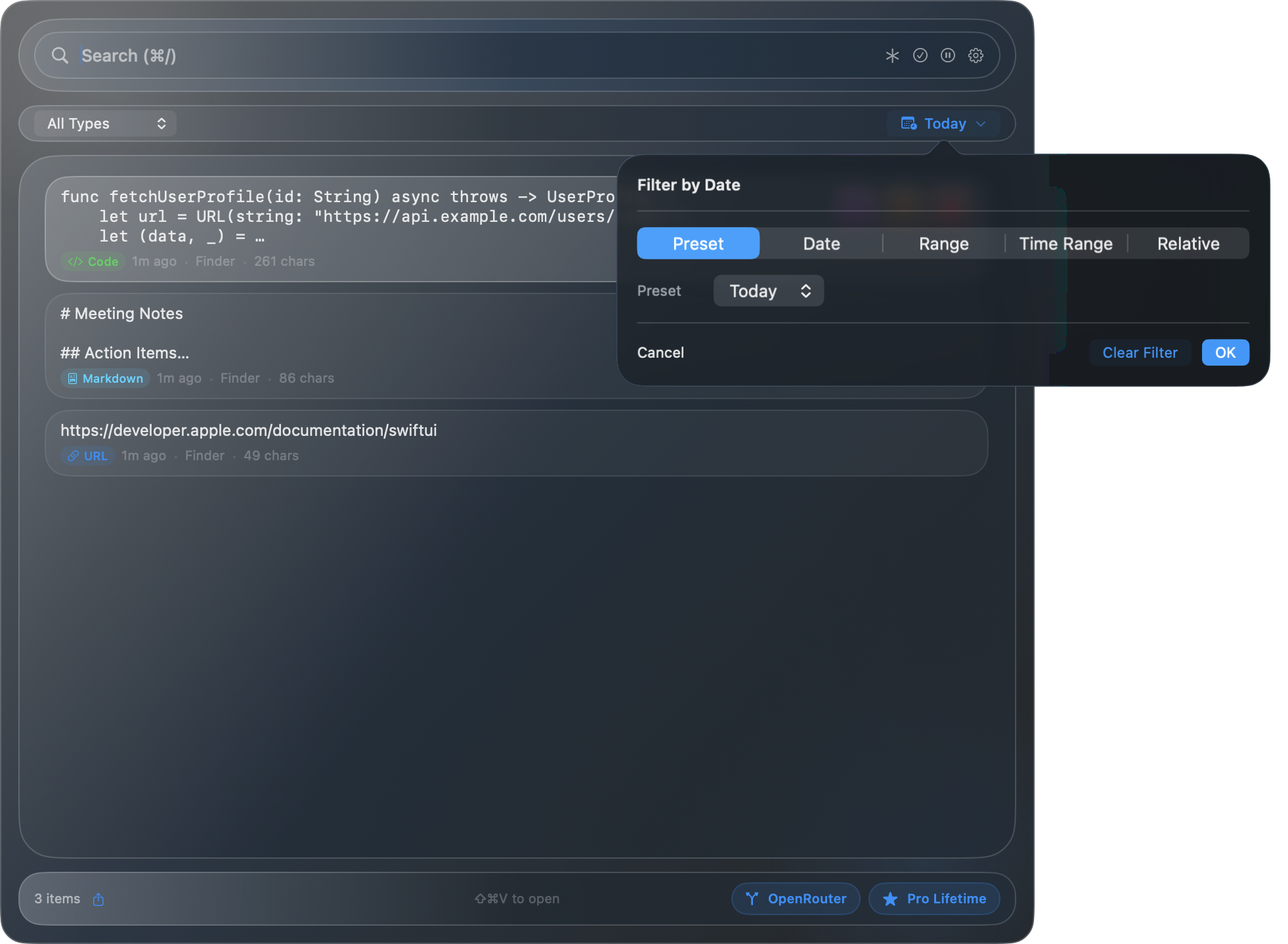
Date range filter dropdown
Regex Search
Toggle the .* button to use regular expression patterns.
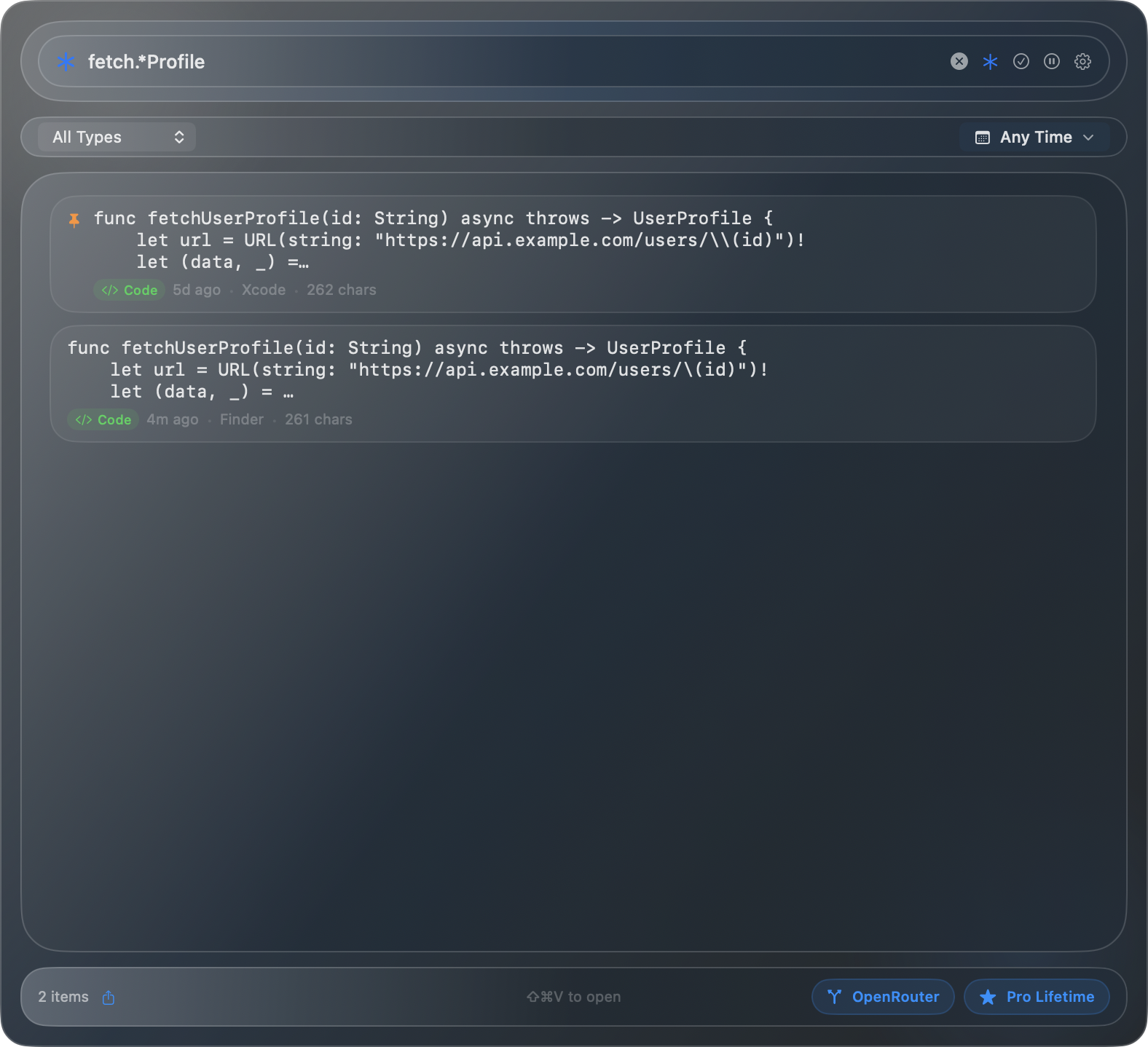
Regex search mode enabled
AI Transforms
Transform your clipboard with free on-device AI or bring your own API keys for cloud AI.
How to Access
- Hover over an item and click the wand icon
- In Quick Search: press Option + T
- In detail window: click "Transform"
On-Device AI (Free)
SnipSnapp includes free on-device AI using Apple Intelligence (macOS 26+, Apple Silicon). It's:
- Completely private — data never leaves your Mac
- Unlimited — use as much as you want
- Fast — processes locally
Cloud AI (BYOK)
Connect your own API keys from Anthropic, OpenAI, Google, xAI, or OpenRouter. All cloud AI is bring-your-own-key:
- Your API key is stored in your Mac's Keychain
- When you use cloud AI, the selected key is sent directly to the provider you choose
- You choose which provider to use
- You pay the provider directly
Available Transforms
Text: Summarize, Rewrite (Casual/Formal/Professional), Fix Grammar, Make Shorter/Longer, Extract Key Points, Explain Simply
Code: Explain, Add Comments, Fix Bugs, Refactor, Add Types, Convert Languages
URL: Summarize Link, Markdown Link, HTML Link
Email: Draft Reply, Extract Contact, Formalize
Phone: Format International, Format Local
Color: Convert to RGB/HSL, Complementary, 5-Color Palette
Translation: Spanish, French, German, Japanese, Chinese
Image: Create Image using the selected cloud image provider and model
General: Explain Like I'm 5, Explain Like I'm 12, Bullet Points
Transform Results
After selecting a transform, SnipSnapp shows the original content and the AI-generated result. Text transforms include "Copy Result" and "Copy & Close" buttons, while Create Image shows a preview you can copy back to the clipboard. The badge in the top-right indicates whether the result came from On-Device AI or Cloud AI.
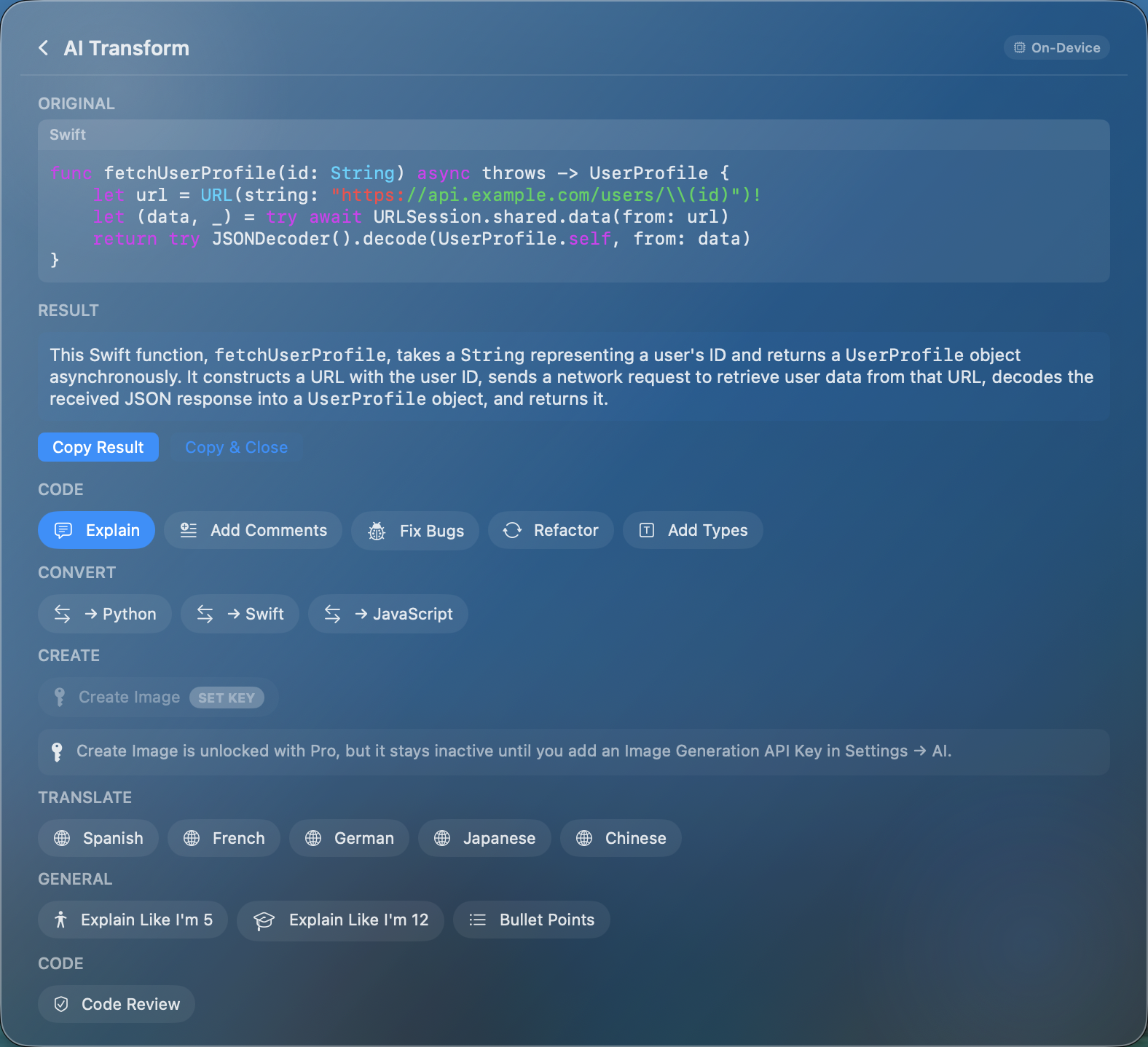
Explain Code — AI explains the Swift function

Summarize — condenses text to key points
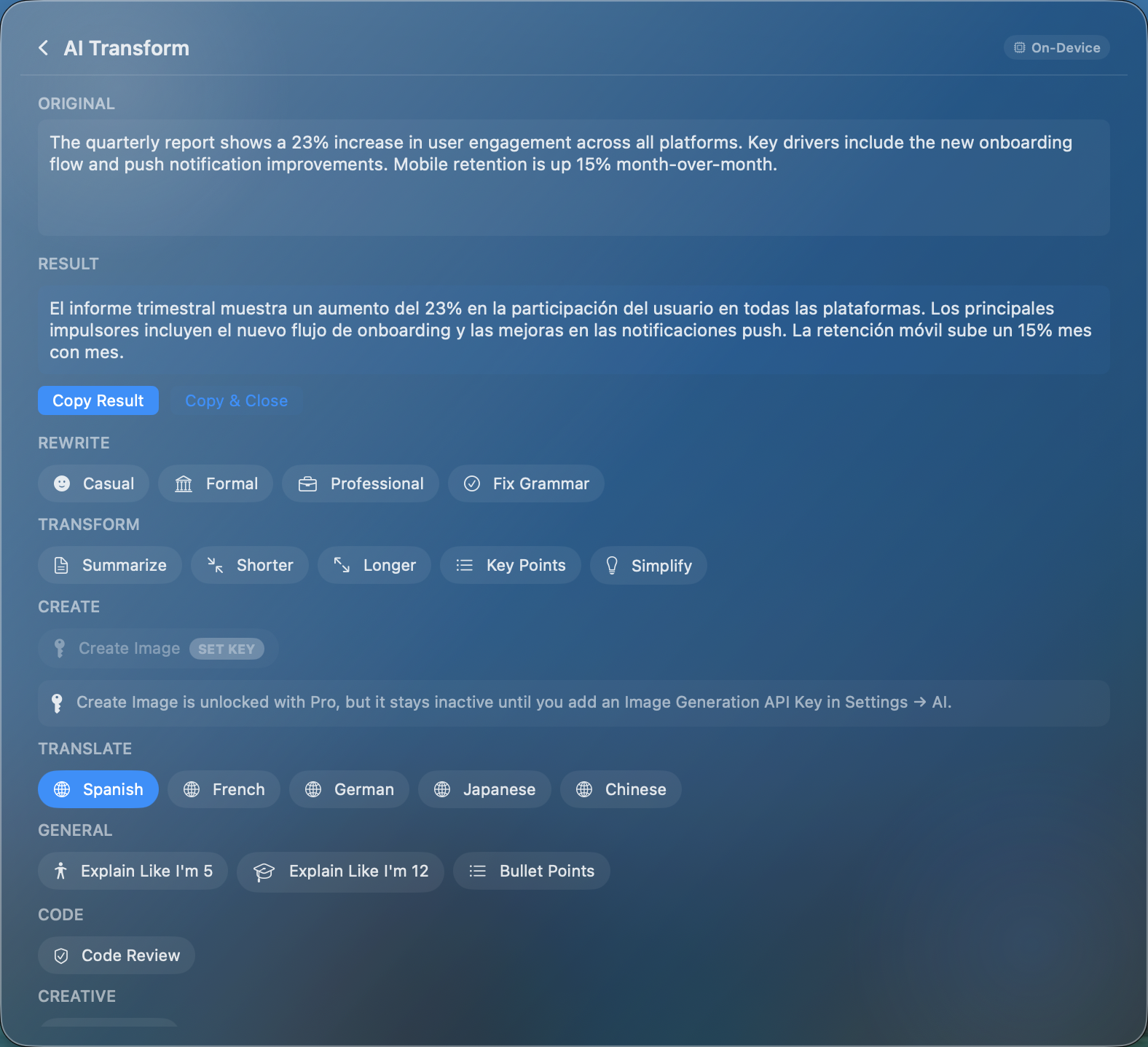
Spanish Translation — original English with Spanish result

Fix Grammar — corrects grammar and punctuation
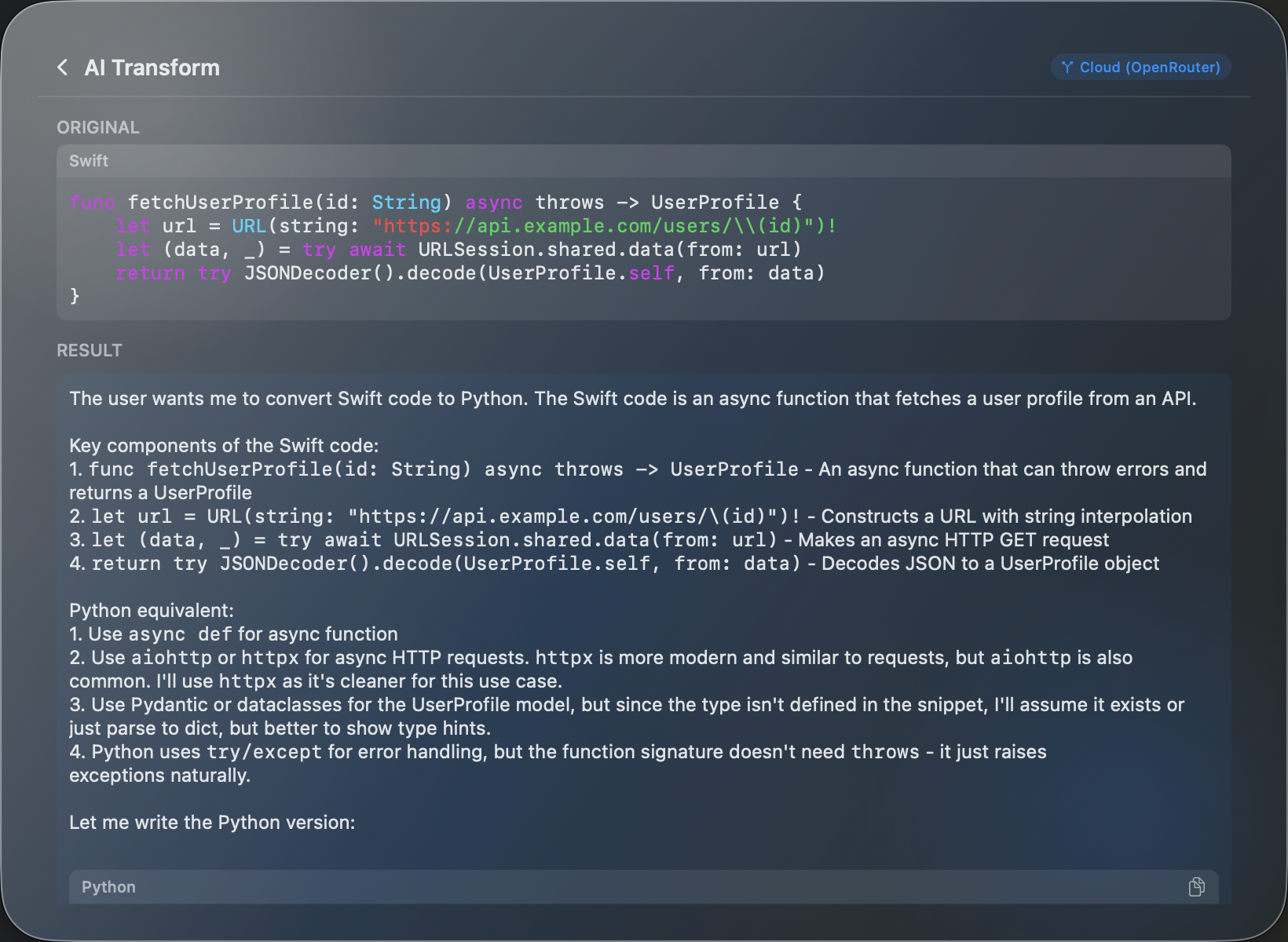
Code Conversion — Swift to Python via cloud AI
Detail Window
Double-click any item to open a floating detail window with full content and options.
Full Content View
The detail window shows complete content with syntax highlighting for code, color swatches, image previews, or selectable text.
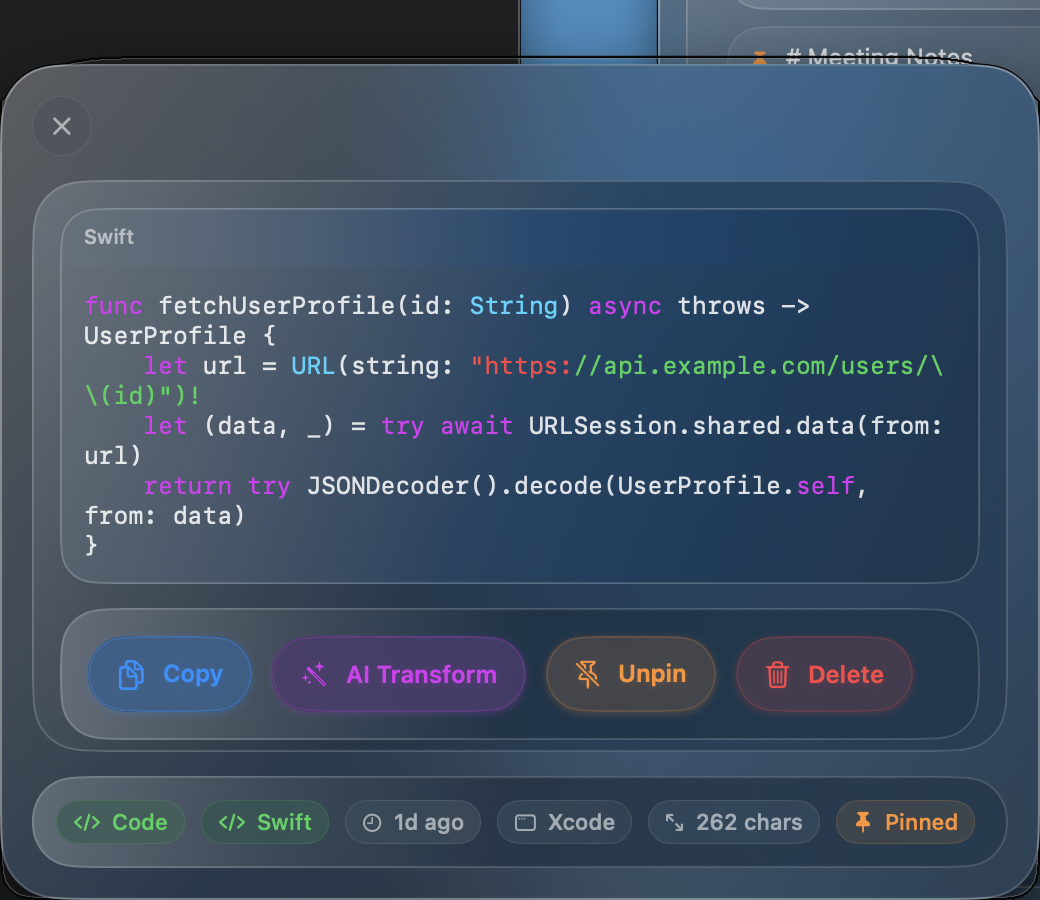
Code item with syntax highlighting
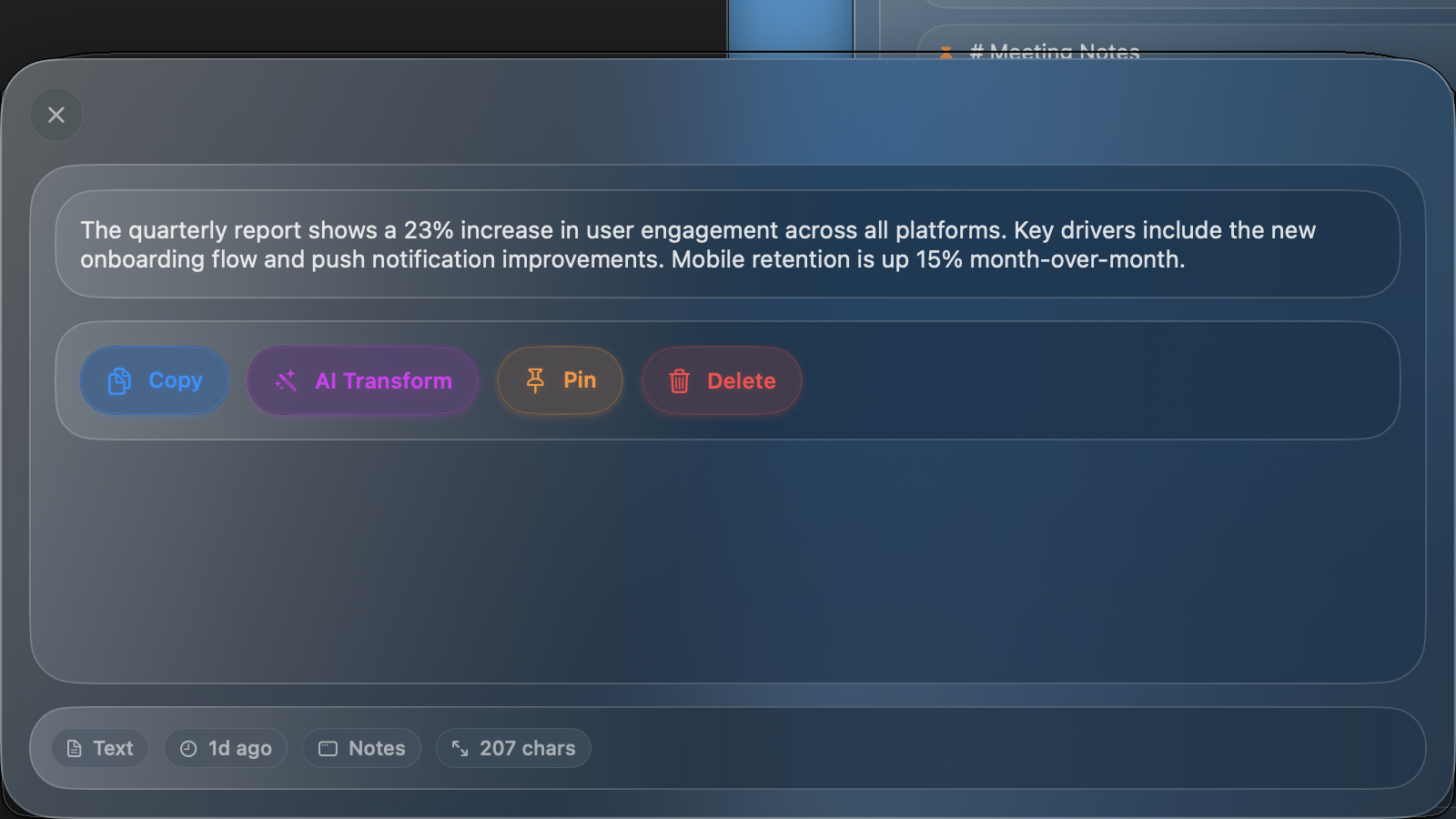
Text item with full content
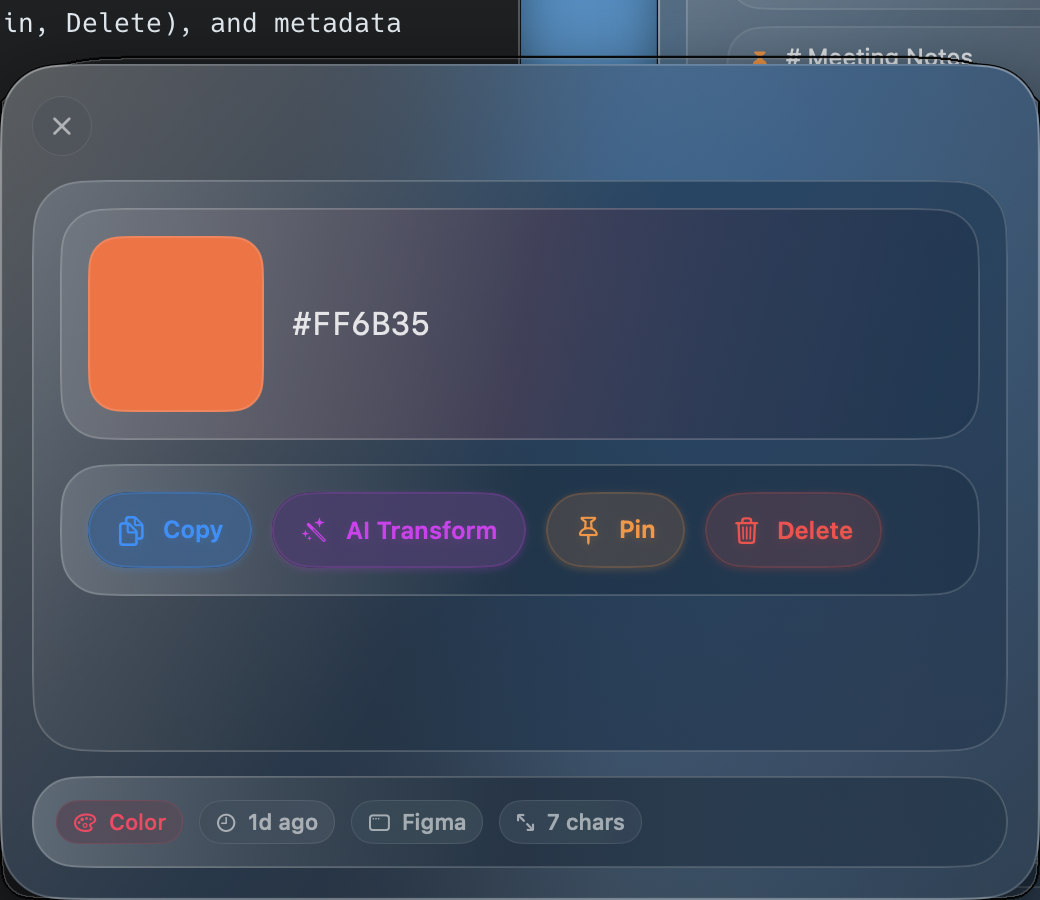
Color item with swatch preview
Action Buttons
- Copy — copy to clipboard
- Transform — open AI transforms
- Extract Text — OCR from images
- Pin/Unpin — pin to top
- Delete — remove item
Metadata
Bottom chips show type, language, timestamp, source app, size, and pinned status.
Pinning Items
Keep frequently used items at the top of your history by pinning them.
How to Pin
- Hover and click the pin icon
- In Quick Search: press Option + P
- In detail window: click the pin button
Pinned items appear at the top and persist across restarts. Unpin by clicking the icon again.
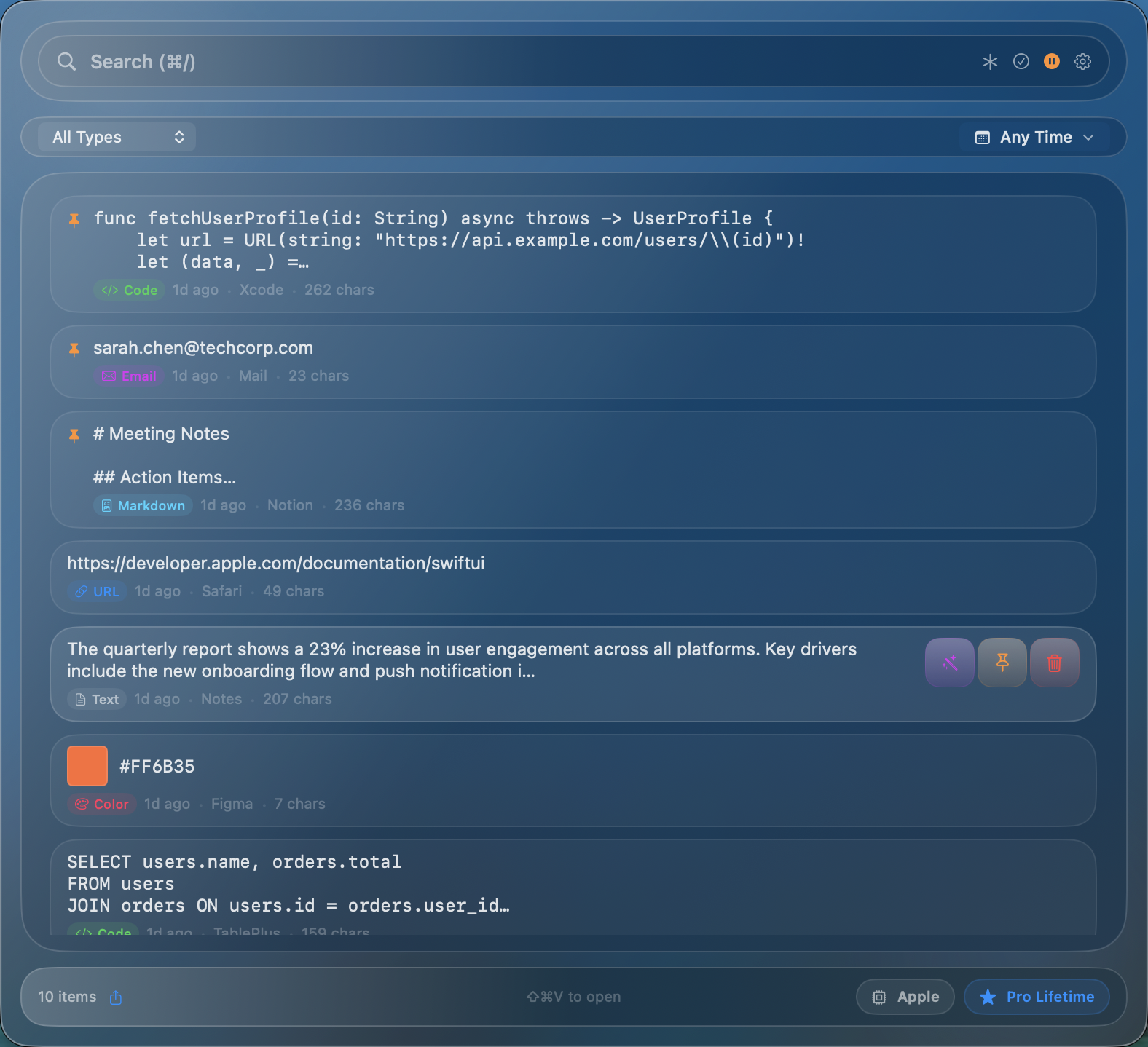
Pinned item moves to the top of the list
Multi-Item Selection
Select multiple items for bulk operations like delete.
Activate Selection Mode
Click the checkmark icon in the toolbar. Each item shows a checkbox.
Select & Delete
Click items to toggle selection. The bottom toolbar shows count and "Delete" button. Use "Select All" / "Deselect All" for quick actions.
Click the checkmark again to exit selection mode.
Export
Export your clipboard history as a bundle for backup or sharing.
How to Export
Click the export button (square.and.arrow.up) in the panel footer. A save dialog suggests a filename like snipsnapp_export_YYYY-MM-DD.repinnedexport
Export Contents
The .repinnedexport bundle includes:
manifest.json— item metadataclipboard.md— Markdown-formatted historyimages/— folder with image items
Export Flow
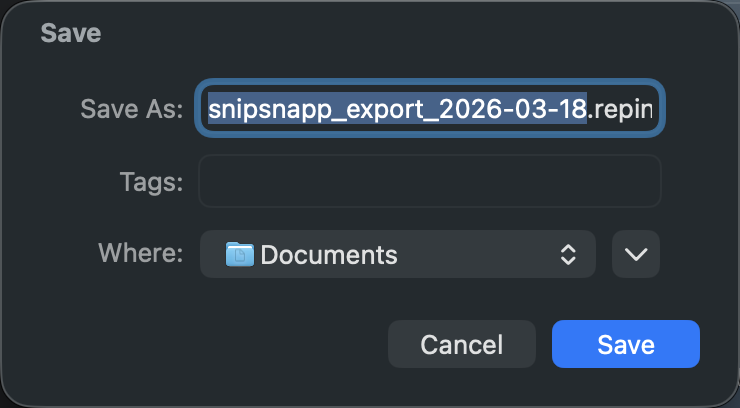
Save dialog with suggested filename
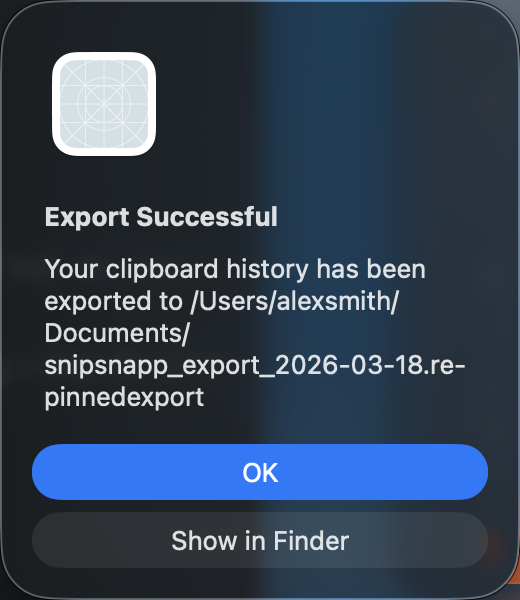
Success dialog with "Show in Finder" option
Filter Before Export
Use search and filters to export only specific types or date ranges.
Settings — General
Configure basic behavior and keyboard shortcuts.
Opening Settings
- Click the gear icon in the panel footer
- Press Cmd + ,
General Options
- Launch at Login
- History Limit (0 = unlimited)
- Image History Limit (default 100)
- Clipboard Monitoring toggle
- Scroll to Top on Open
- Remember Window Size
Keyboard Shortcuts
Configure hotkeys for Menu Bar Panel (default Cmd + Shift + V) and Quick Search (default Cmd + Option + V).
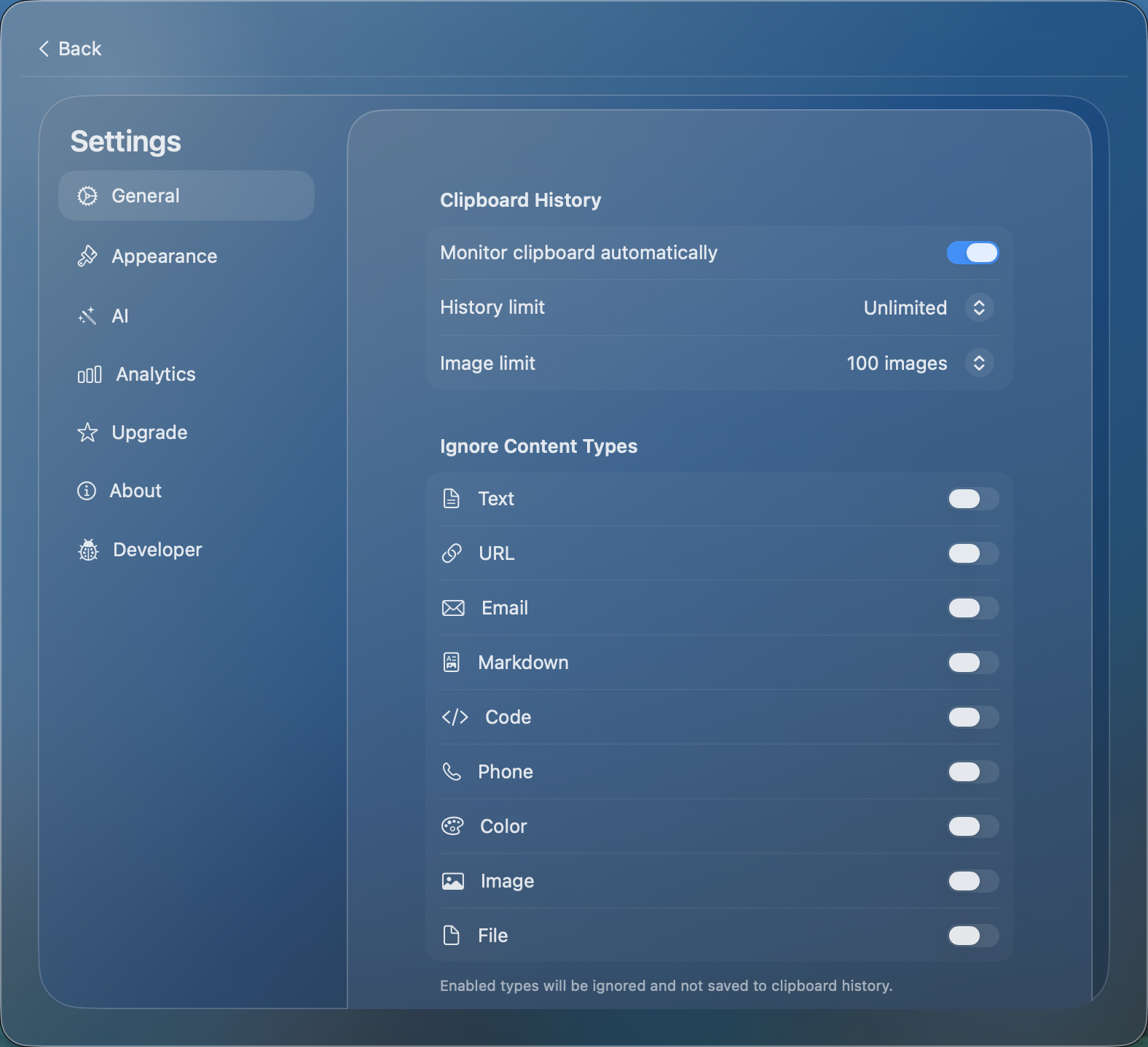
General settings tab with clipboard history, content types, and system options
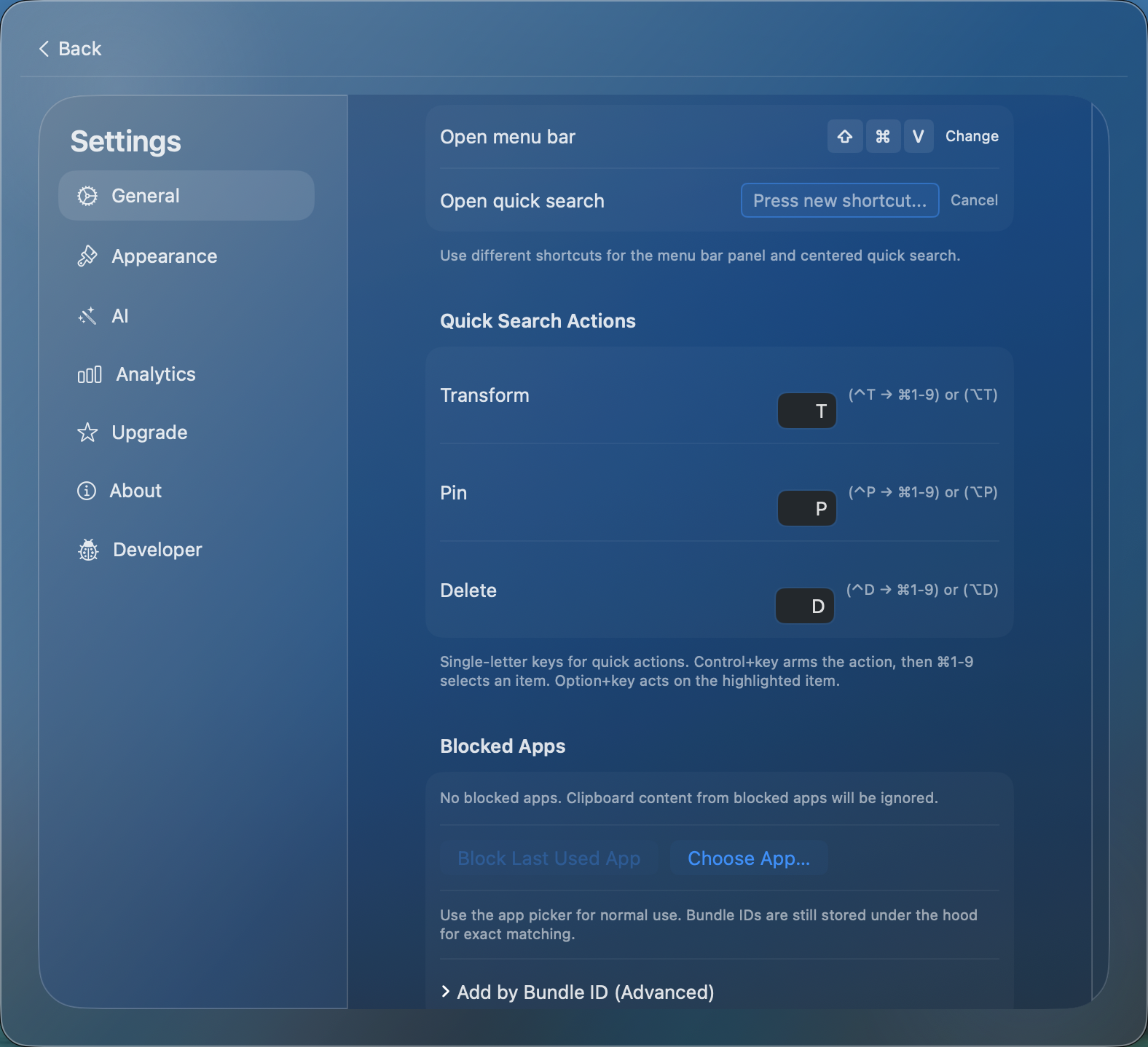
Click a hotkey field to record a new shortcut — "Press new shortcut..." appears
Settings — Blocked Apps
Prevent clipboard content from specific apps from being stored.
How to Block Apps
- "Choose App..." — browse and select an app
- "Block Last App" — quickly block the most recent app
- "Add by Bundle ID" — manually enter a bundle ID
Automatic Password Manager Detection
On macOS, SnipSnapp automatically skips clipboard items marked as concealed by password managers and uses additional heuristics for apps such as 1Password, Bitwarden, LastPass, Enpass, KeePassXC, Dashlane, and Keychain Access. Manual blocking is still available for anything not detected automatically.
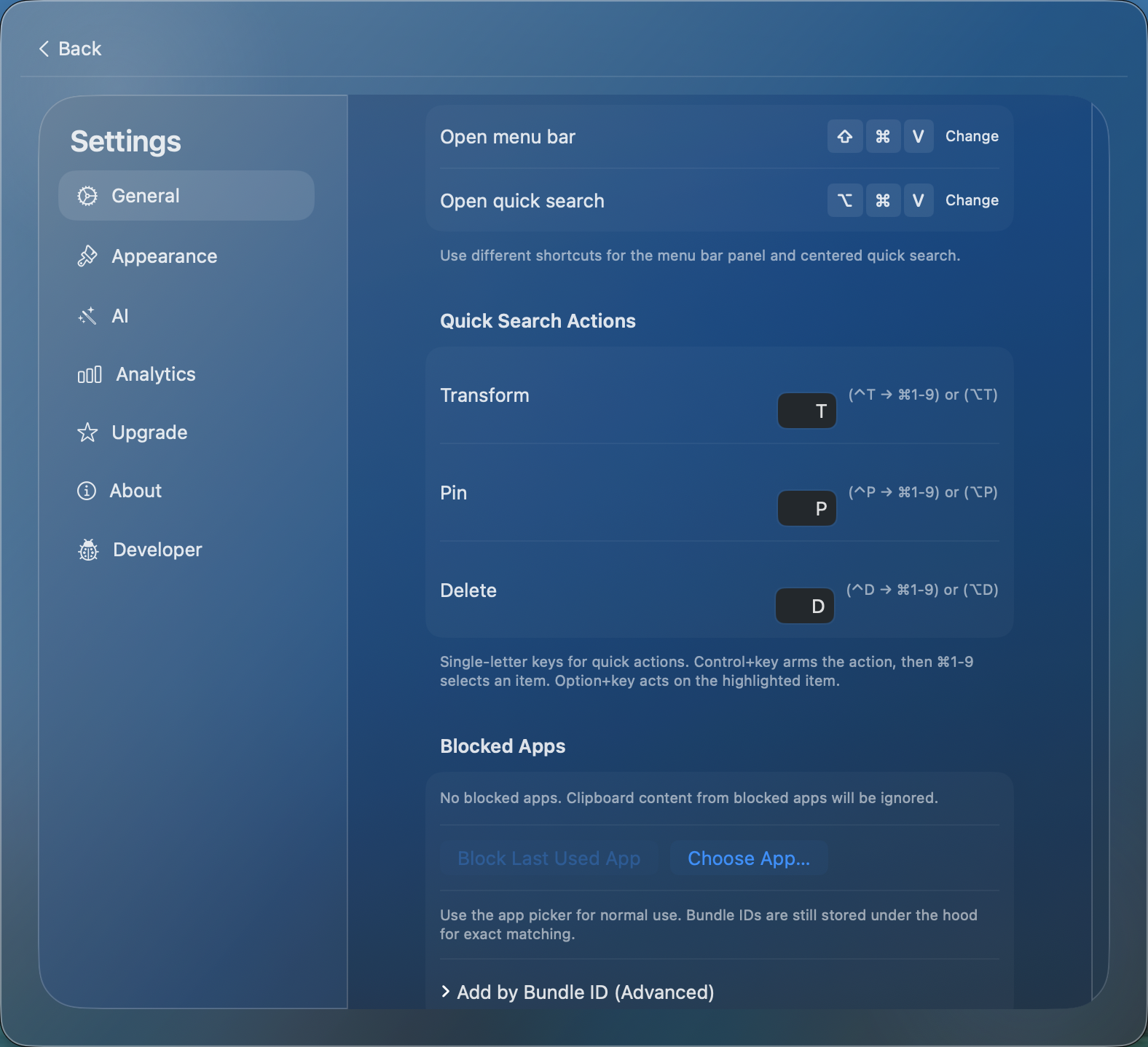
Blocked Apps section with "Block Last Used App", "Choose App", and "Add by Bundle ID" options
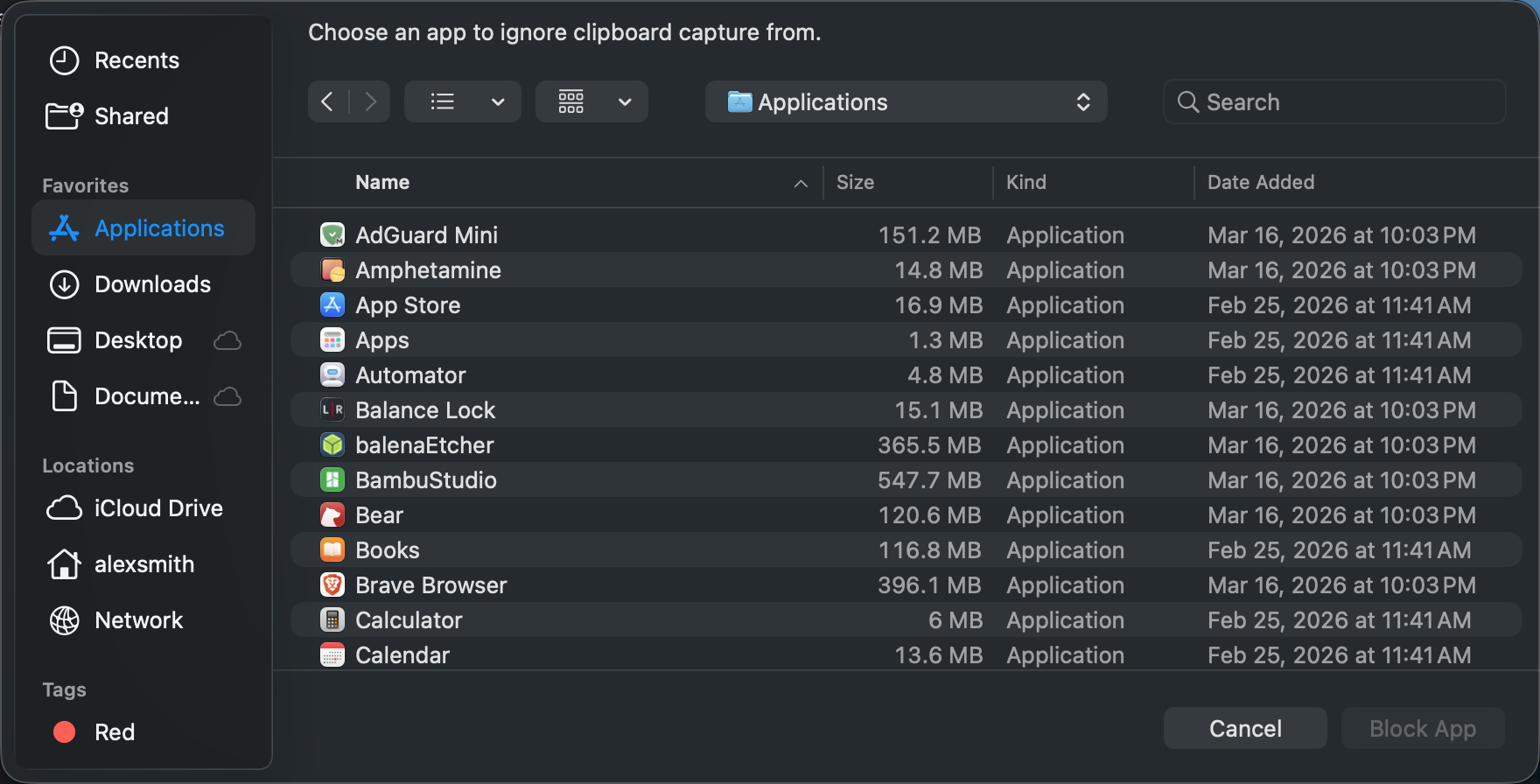
"Choose App..." opens a file picker to browse and select apps to block
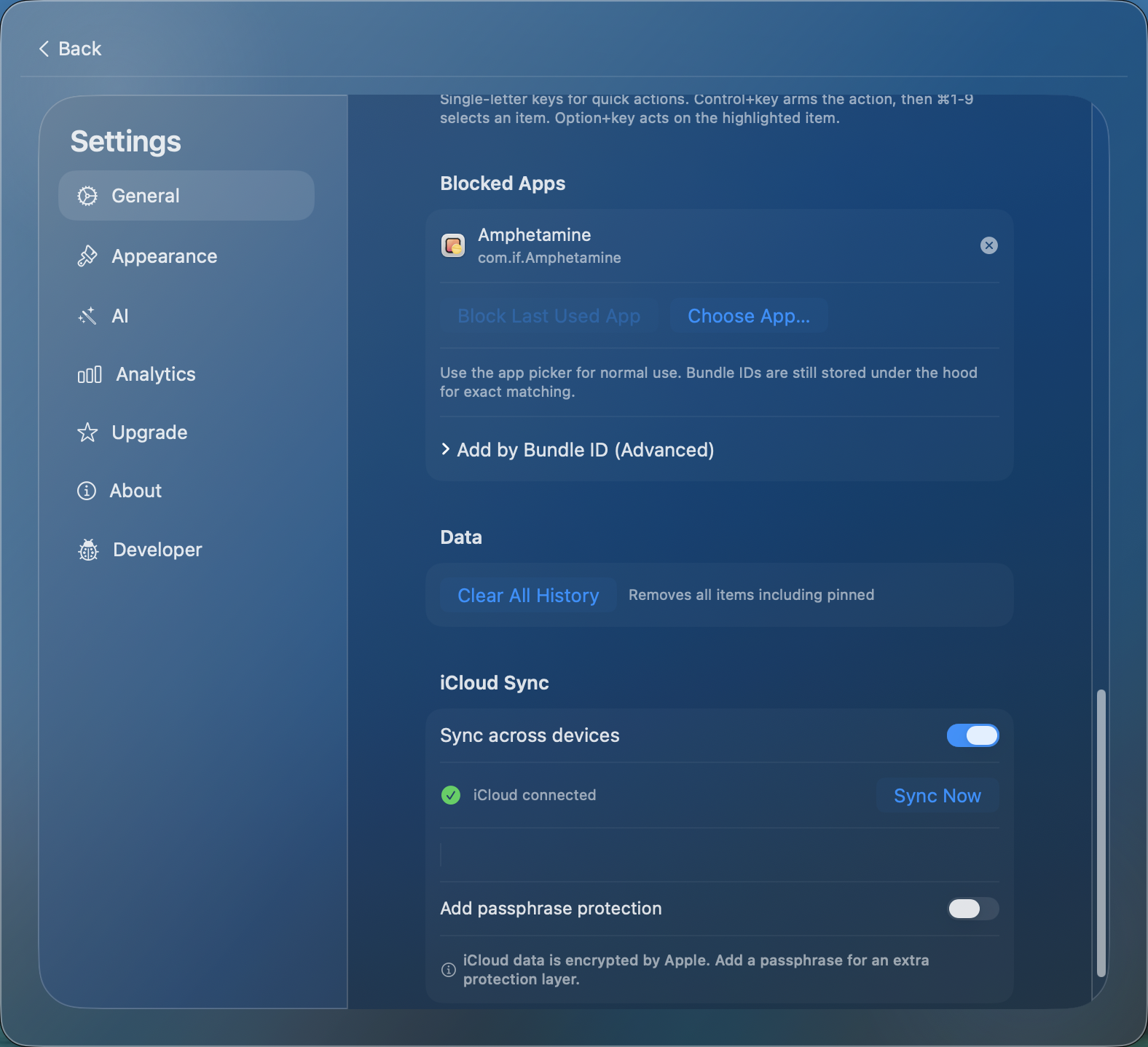
A blocked app showing its name, bundle ID, and remove button
Settings — Appearance
Customize colors with built-in themes or custom hex colors.
Built-In Themes
Choose from: Standard (blue), Ocean, Forest, Sunset, Berry, or Custom (hex color)
Custom Theme
Select a custom hex color that syncs via iCloud to all your devices.
Themes apply to menu bar panel, Quick Search, and iOS app.
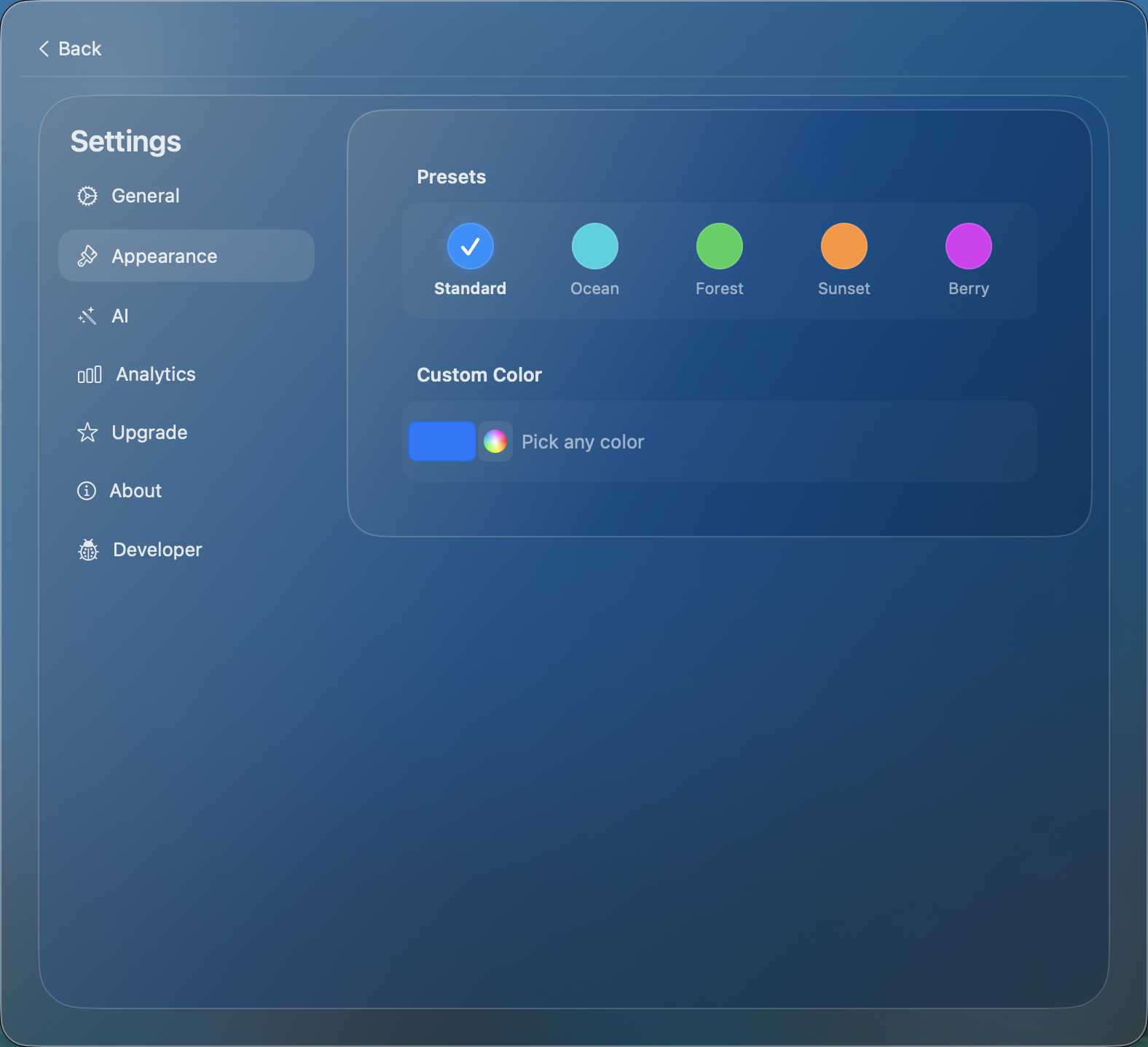
Theme presets: Standard, Ocean, Forest, Sunset, Berry, plus custom color
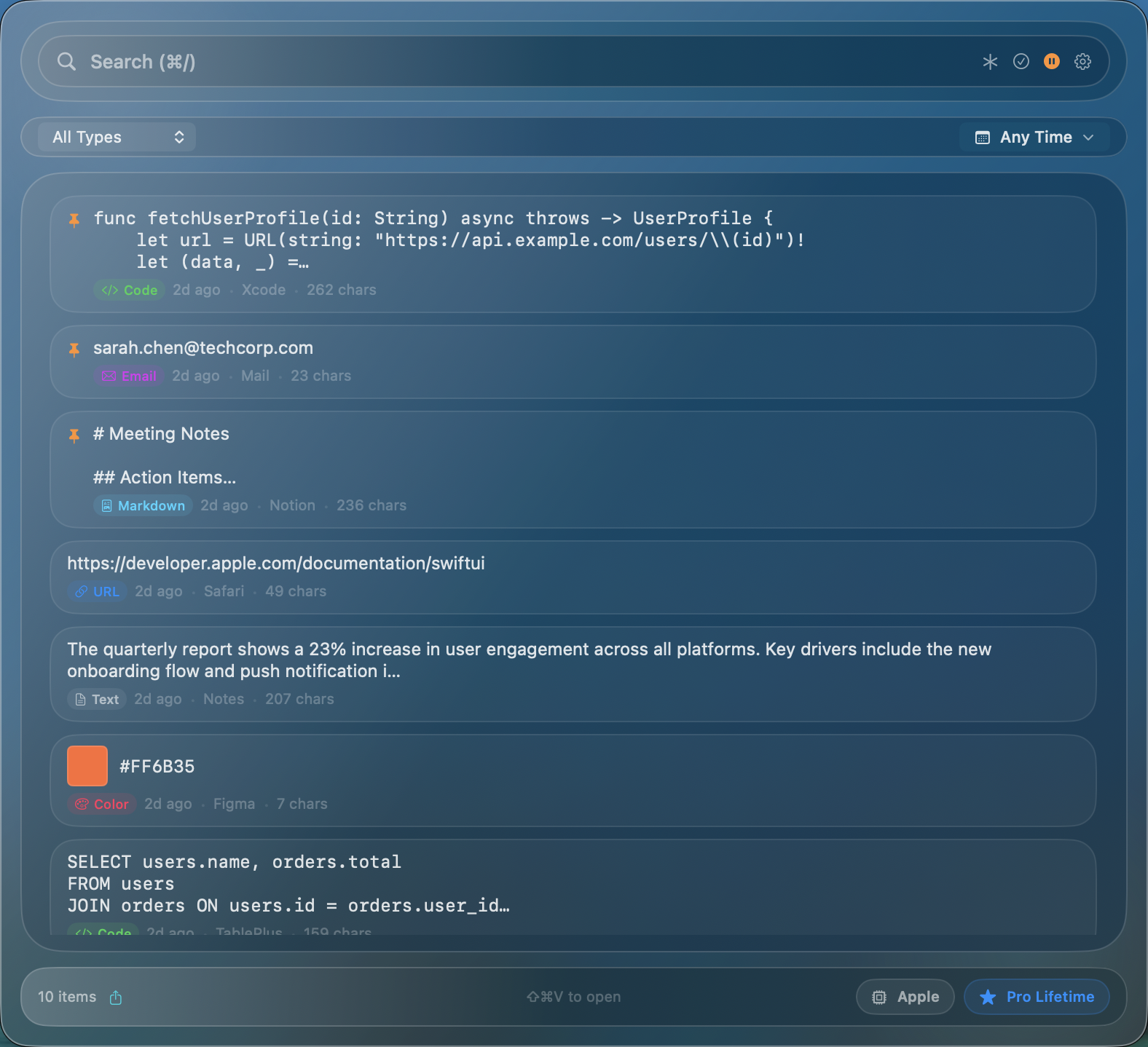
The panel with the Ocean theme applied — teal accent colors throughout
Settings — AI
Connect cloud AI providers using your own API keys. Saved keys are stored in your Keychain, and the selected key is sent directly to your chosen provider when you use cloud AI.
Supported Providers
Anthropic, OpenAI, Google Gemini, xAI, OpenRouter
Setup Steps
- Go to Settings > AI
- Select a provider from the dropdown
- Paste your API key (stored in Keychain)
- SnipSnapp auto-fetches available models
- Select a model from the searchable picker
- Start transforming!
Key Management
Separate fields for text and image generation providers, models, and API keys. Both key types are stored in macOS Keychain. Create Image uses the selected image provider and model. Clear saved keys anytime with "Clear Key" buttons.
Model Cache & Security
Model list cached for 24h with refresh button. First use shows a consent dialog with privacy policy link. The selected key is sent directly to your chosen provider when you use Cloud AI, and iCloud Keychain may sync saved keys across your Apple devices.
Pricing
Pay the AI provider directly at their rates. SnipSnapp does not add per-request cloud AI charges.
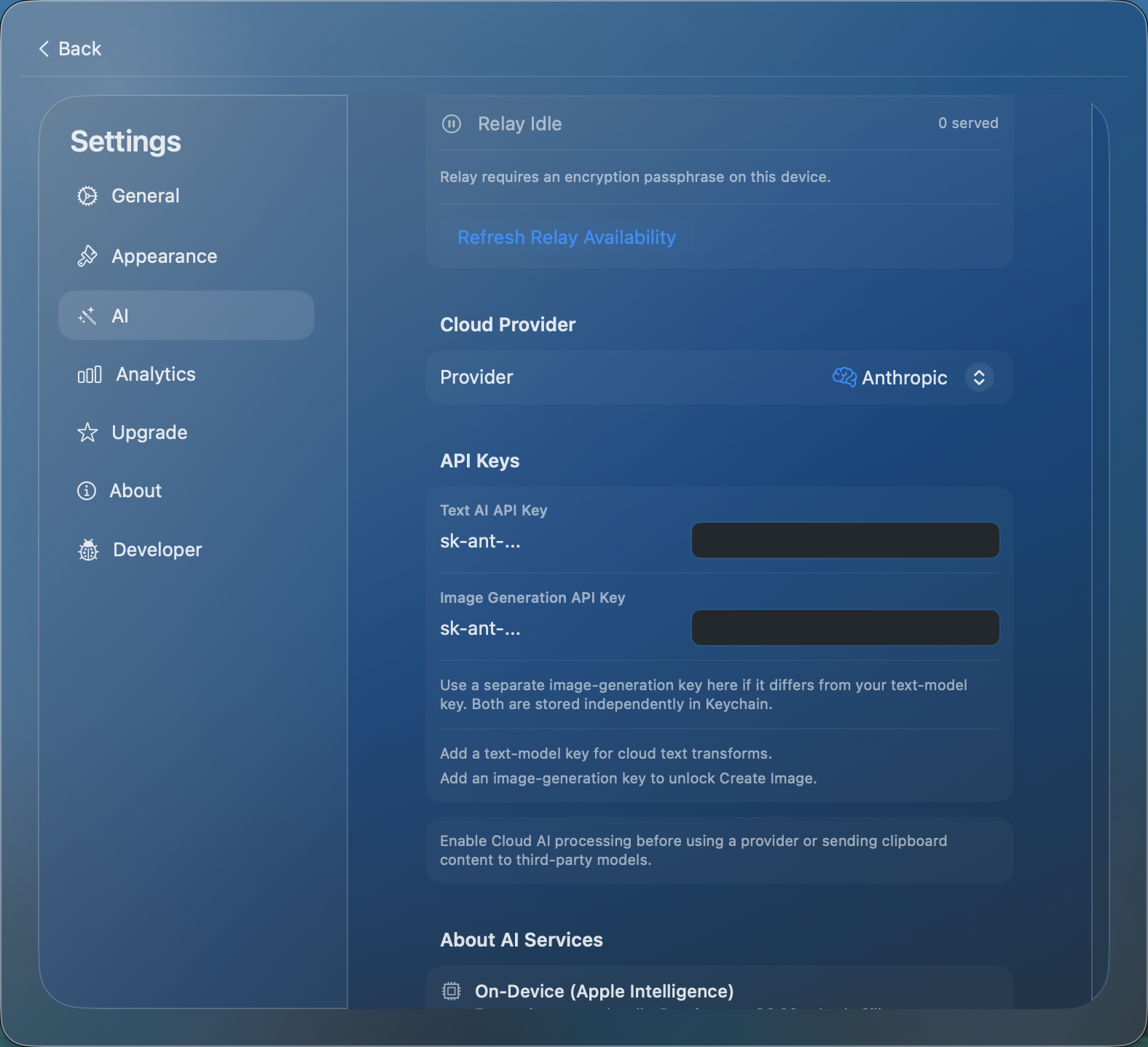
AI Settings
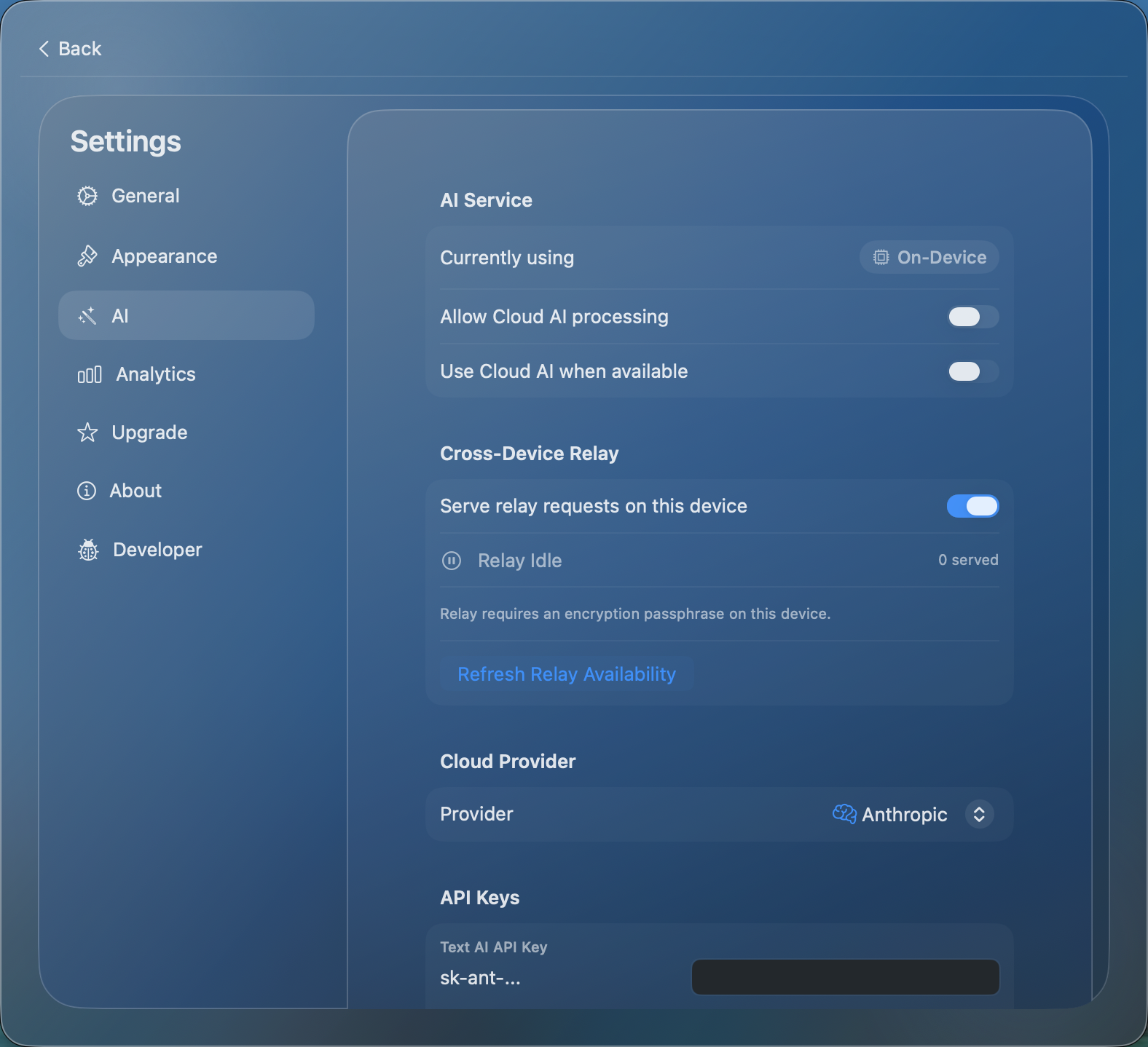
AI settings with provider, relay, and API key sections
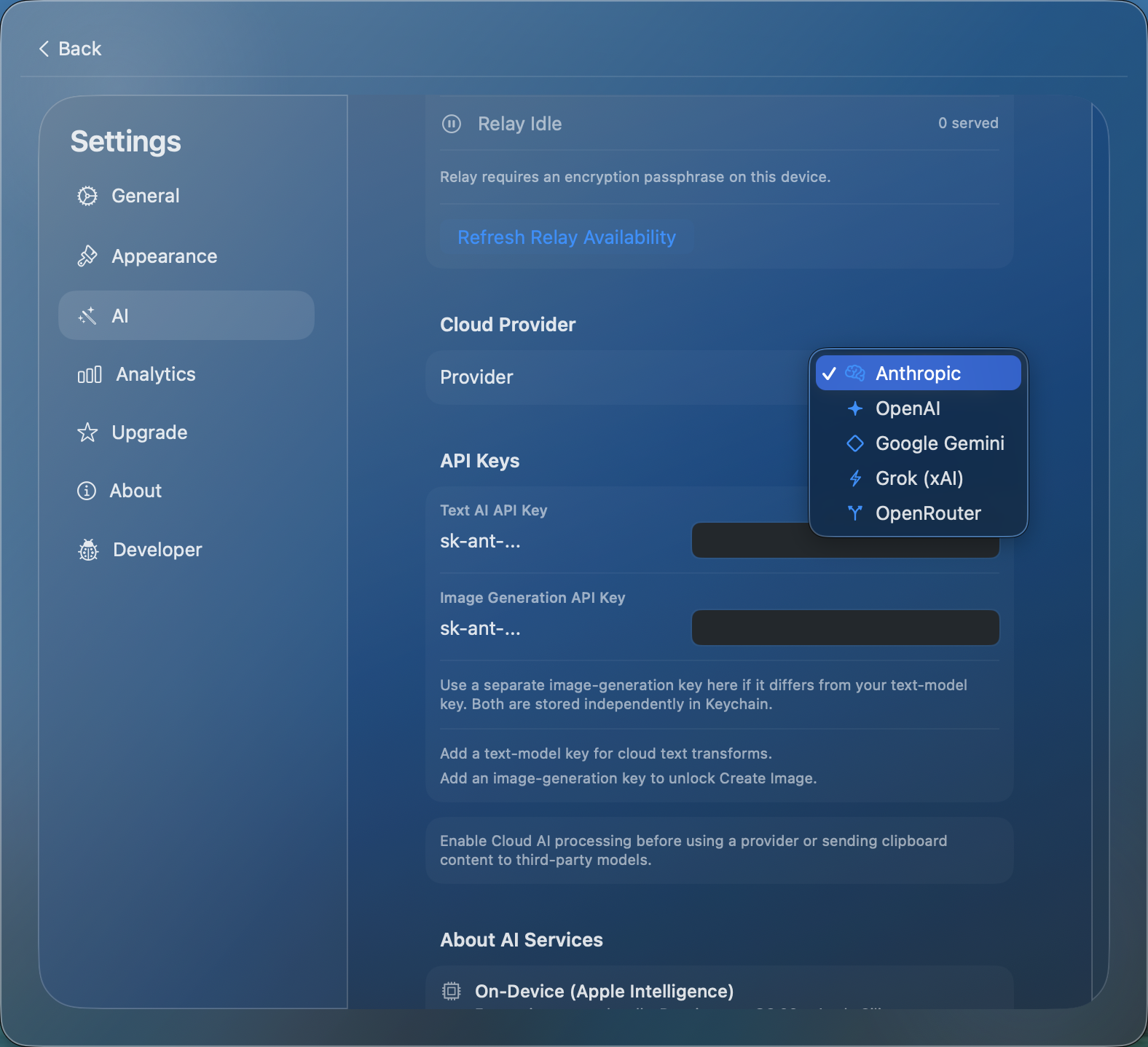
Choose from 5 cloud AI providers
API key fields stored securely in Keychain
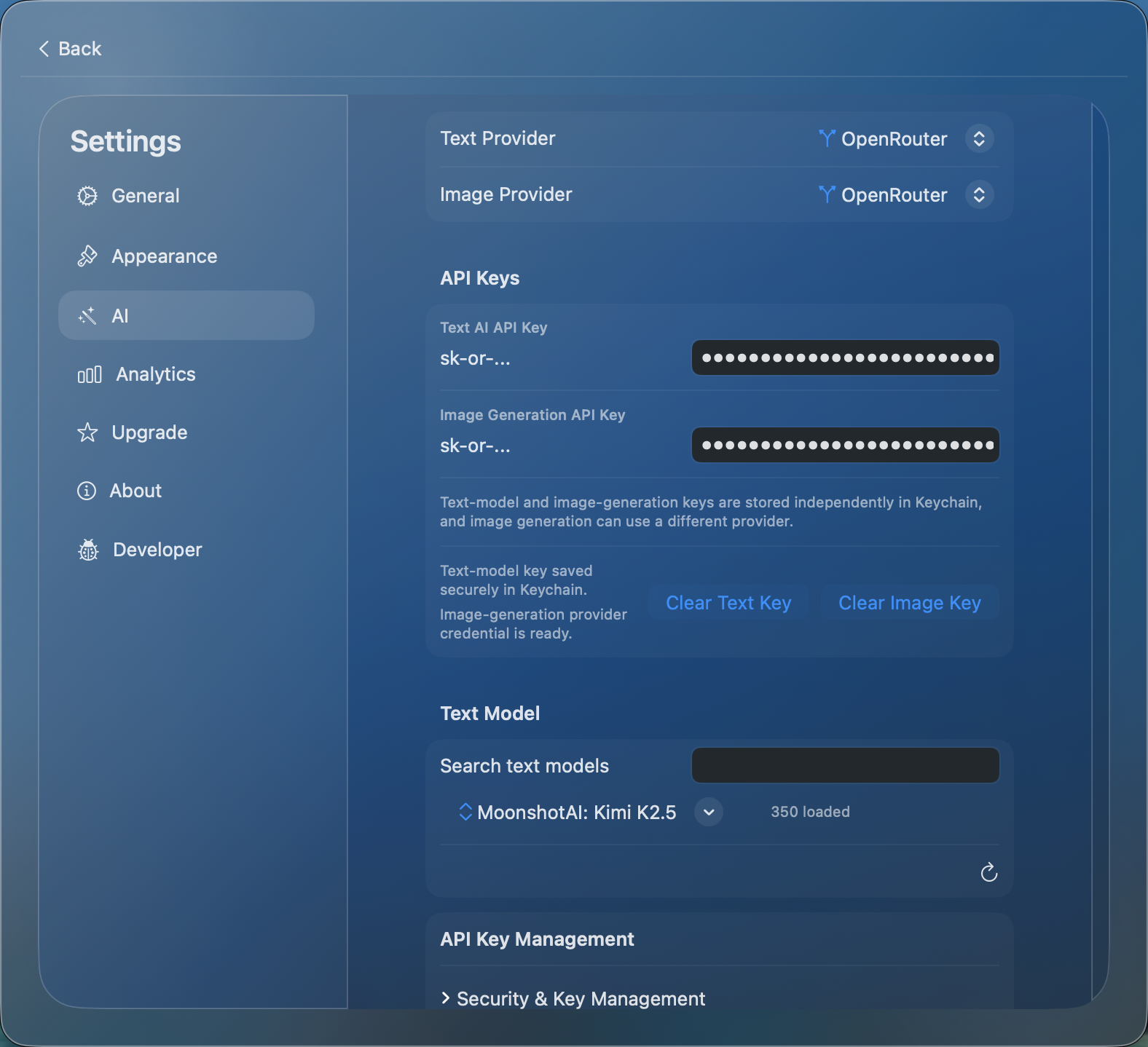
Models auto-fetched after entering your API key
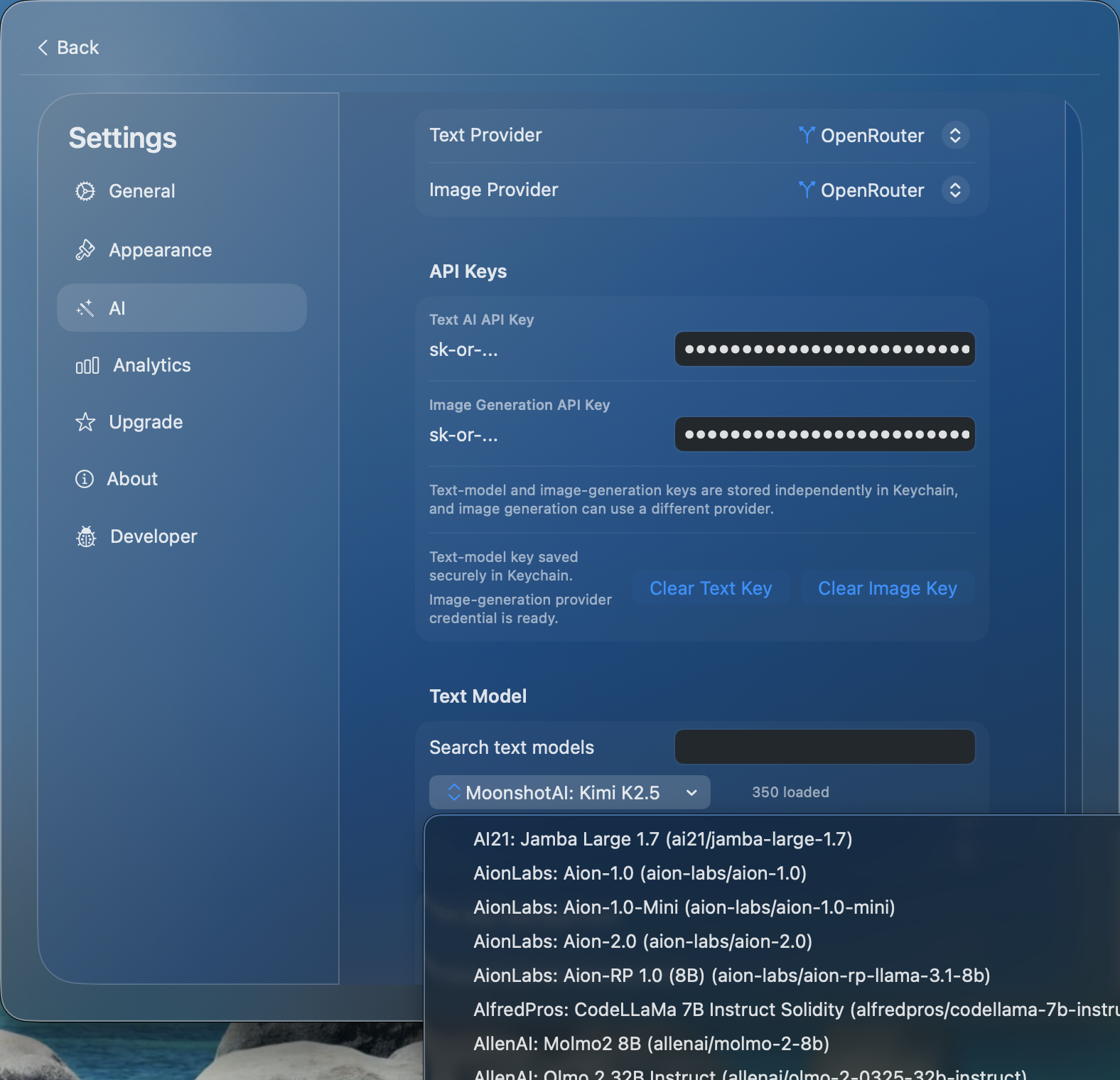
Searchable model picker with the provider's available models
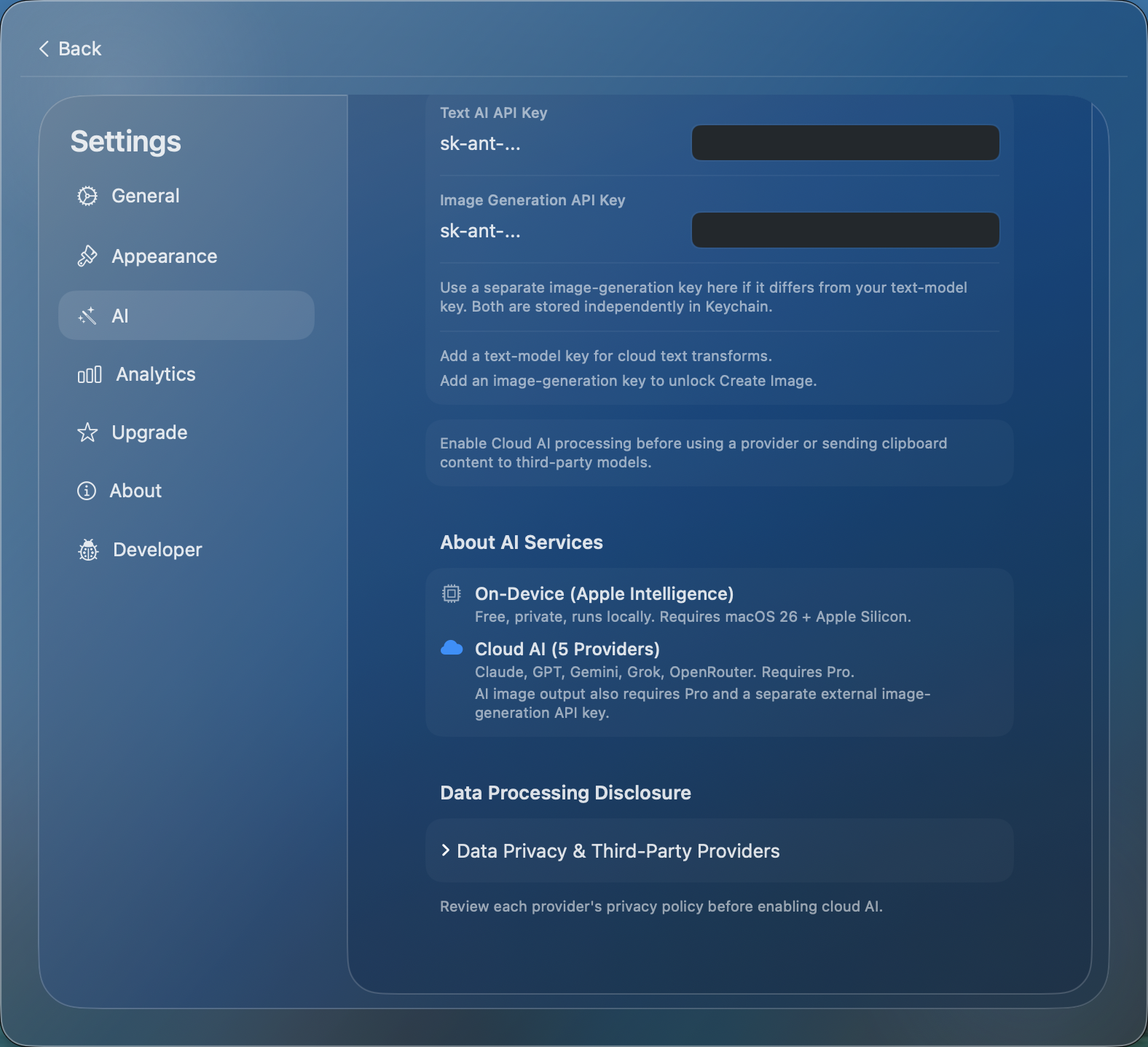
About AI Services and data processing disclosure
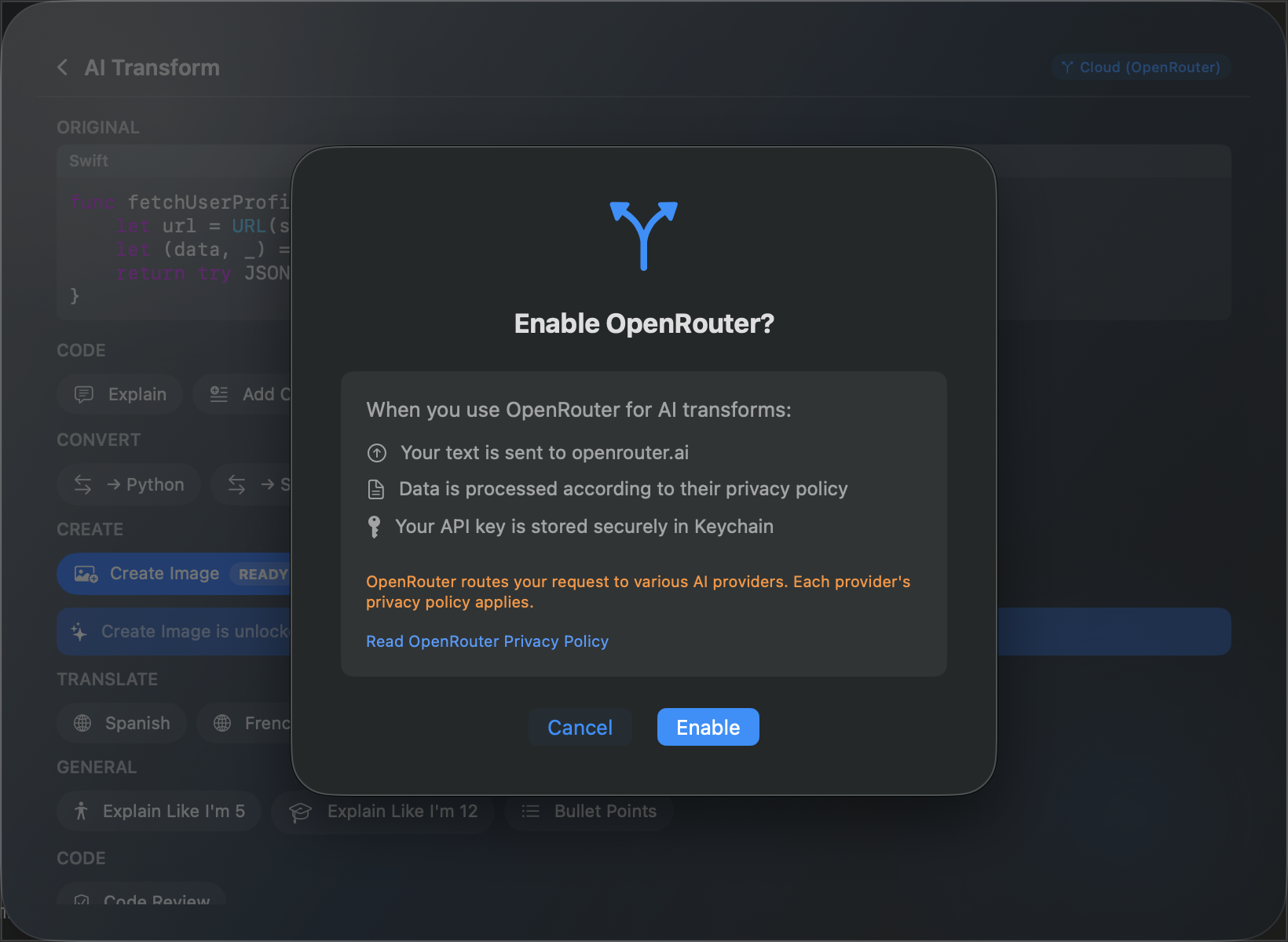
Provider consent dialog — shown on first use of each cloud AI provider
Settings — Upgrade to Pro
One-time purchase ($19.99) unlocks advanced features.
Pro Features
- Cloud AI with your own API keys (Anthropic, OpenAI, Google, xAI, OpenRouter)
- iCloud Sync across Mac, iPhone, iPad
- Cross-Device AI Relay between your devices
- Export clipboard history
- Optional passphrase protection for synced data
Free Features (No Pro Required)
- Full clipboard history with content detection
- Search and filtering
- Free on-device AI (Apple Intelligence)
- Pinning and selection
- Custom themes
- Hotkey customization
Restore Purchases
Click "Restore Purchases" to verify existing Pro purchases on another device.
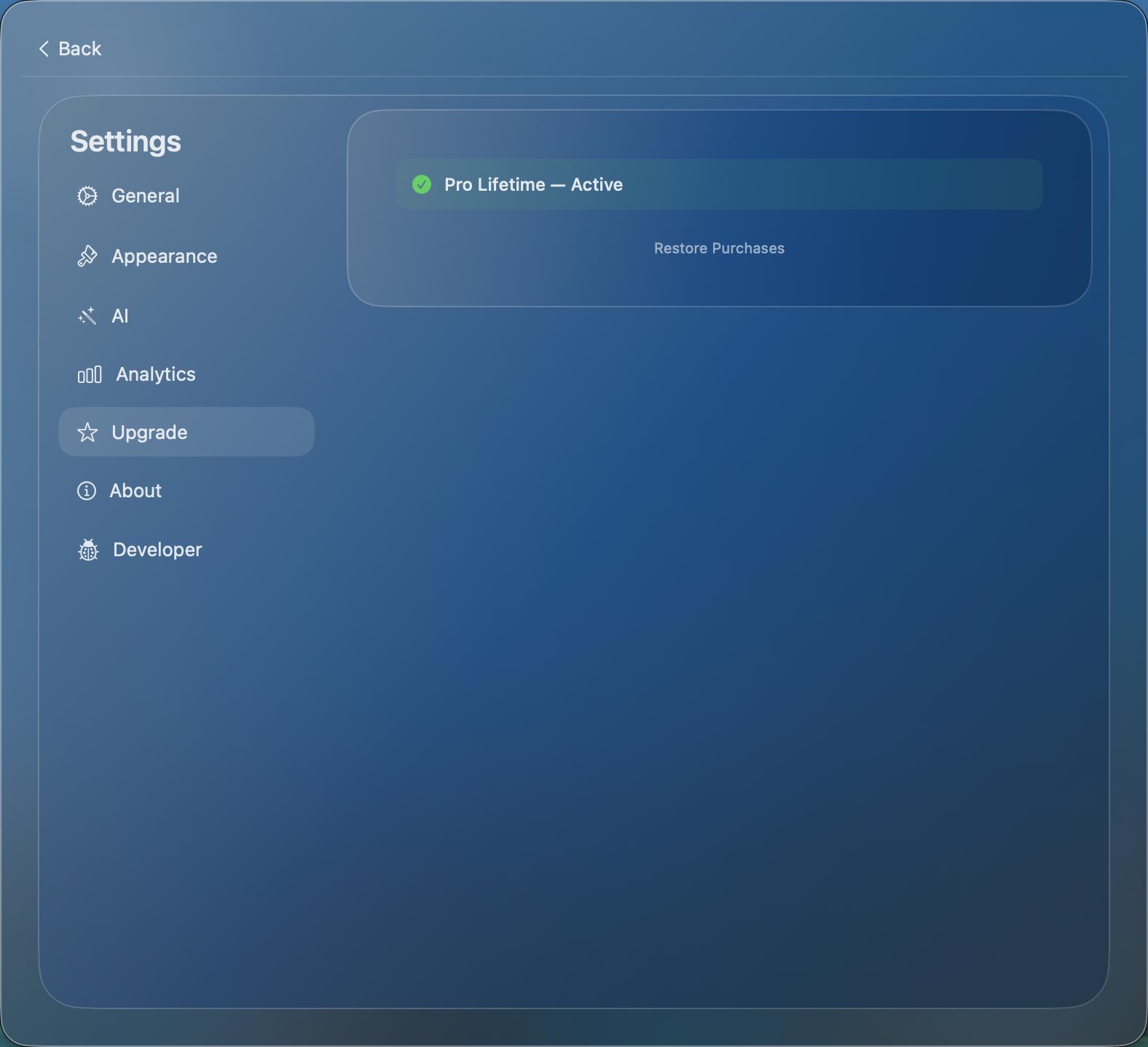
Upgrade tab with Pro status and Restore Purchases
iCloud Sync
Sync clipboard history across Mac, iPhone, and iPad (Pro feature).
How It Works
With iCloud Sync enabled, your clipboard history automatically syncs across all devices on the same iCloud account. Copy on Mac → appears on iPhone and iPad.
Enabling Sync
Toggle iCloud Sync in Settings. Make sure all devices are signed in with the same iCloud account.
Sync Status
SnipSnapp shows a sync indicator so you know when syncing is active.
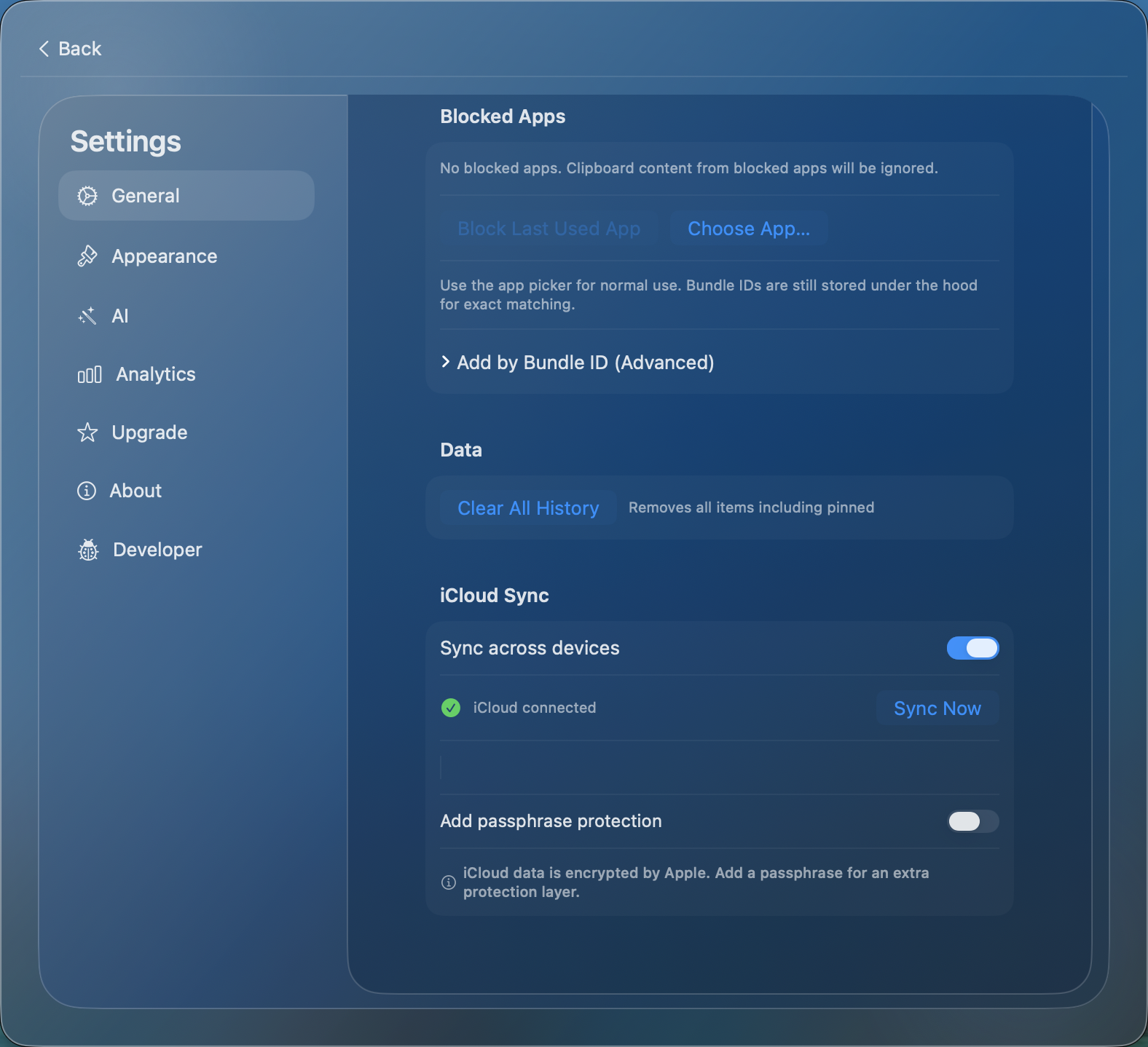
iCloud Sync toggle with passphrase protection option
Cross-Device AI Relay
Send AI transform requests between your devices over iCloud relay (Pro feature).
How It Works
- Send a transform request from one device through your private iCloud account
- Another relay-capable device processes it using on-device AI
- The result is returned to the requesting device
Requirements
- Same iCloud account on both devices
- iCloud Sync enabled
- An encryption passphrase configured for sync
- Another relay-capable device online
Maximum input size: 32,000 characters. Relay requests currently time out after about 10 seconds if no response is received.
iOS Companion App
Access your clipboard on iPhone and iPad.
Features
- Clipboard History (synced from Mac with iCloud Sync)
- Manual Import — tap import button to add current iOS clipboard
- Search & Filter — same as macOS
- AI Transforms — on-device AI on supported Apple Intelligence hardware, relay through another device, or cloud AI with Pro
- Themes — same 5 themes + custom color as macOS
- Selection Mode — bulk delete
iPhone
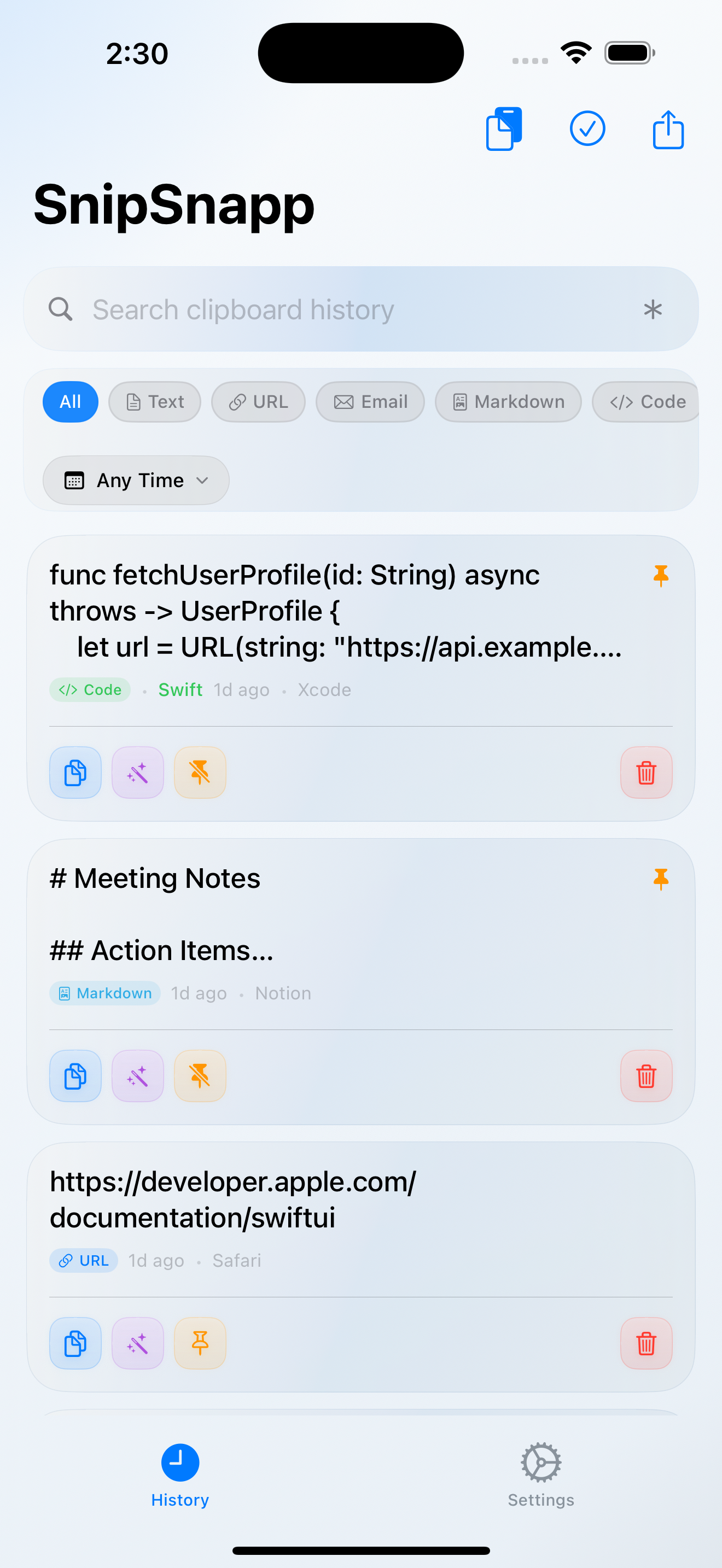
Clipboard history
iPad
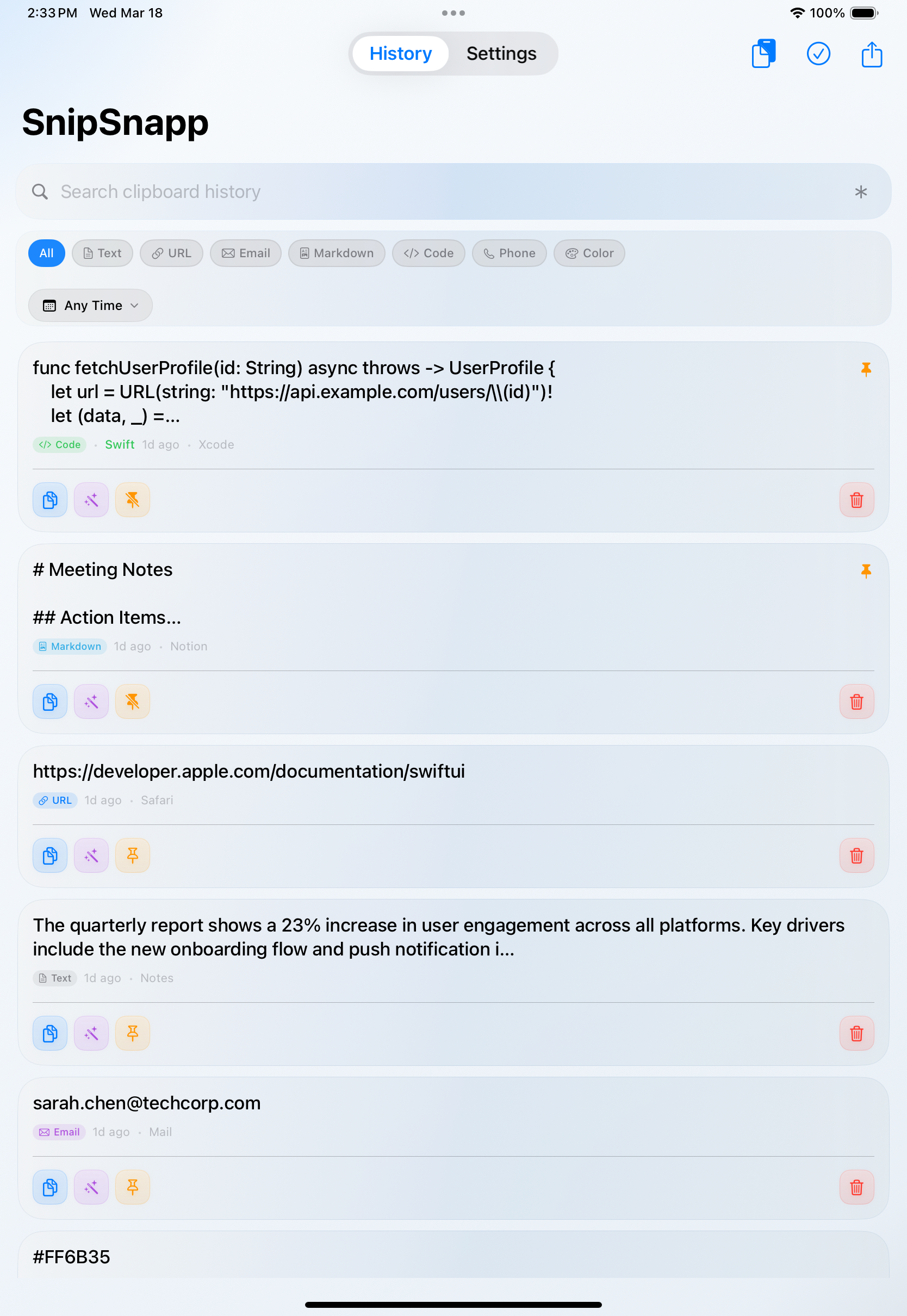
iPad clipboard history
Tab Navigation
History tab (view/manage items) and Settings tab (configure behavior, themes, iCloud sync).
Clipboard Import
iOS doesn't allow background clipboard monitoring. Use the import button whenever you want to capture something.
Keyboard Shortcuts
Complete reference for all keyboard shortcuts.
Global
| Shortcut | Action |
|---|---|
| Cmd + Shift + V | Open/close Menu Bar Panel |
| Cmd + Option + V | Open/close Quick Search |
Menu Bar Panel
| Shortcut | Action |
|---|---|
| Cmd + 1–9 | Copy items 1–9 |
| Cmd + Option + 1–9 | Copy items 10–18 |
| Cmd + Shift + 1–9 | Copy items 19–27 |
| Cmd + F | Focus search field |
| Escape | Close panel |
Quick Search
| Shortcut | Action |
|---|---|
| ↑ ↓ | Navigate items |
| Enter | Paste selected item |
| Option + T | Transform selected |
| Option + P | Pin/unpin |
| Option + Delete | Delete selected |
| Escape | Close window |
Privacy & Security
SnipSnapp is designed with privacy as the default.
Local Storage
By default, all clipboard data is stored locally on your device. If you enable iCloud Sync, history is stored in your private CloudKit database.
On-Device AI
On-device AI transforms (Apple Intelligence) never leave the device that processes them. Processing happens entirely on-device.
Cloud AI (BYOK)
If you use cloud AI with your API keys:
- Only the text you transform is sent to the provider
- Your API key is stored in macOS Keychain and is not sent to SnipSnapp
- If iCloud Keychain is enabled, saved keys may sync across your Apple devices
- Communication goes directly from SnipSnapp to your provider
API Key Storage
API keys are stored securely in macOS Keychain. If iCloud Keychain is enabled, saved keys may sync across your Apple devices.
Password Manager Detection
On macOS, SnipSnapp automatically skips clipboard items marked as concealed by password managers and uses additional heuristics for apps such as 1Password, Bitwarden, LastPass, Enpass, KeePassXC, Dashlane, and Keychain Access.
No Analytics
We never collect your clipboard content for analytics or tracking.
Questions?
For more details, see our Privacy Policy or contact develop@youmeapps.com.